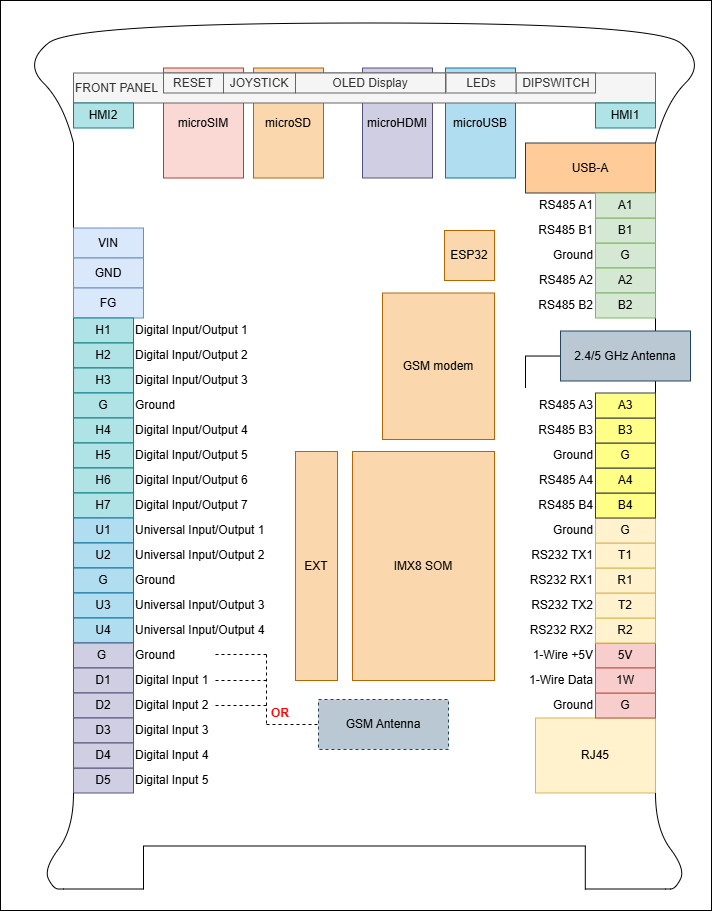
External Interfaces
Tiger City IMX Industrial Computer with Linux OS
DIO read
This example shows how to use DIO (Digital Input Output) of the Tiger computer in the read mode. After running the program, the state of every DIO will be displayed.
Connections
In order to test, the program uses H1 - H7 pins (diagram provided at the bottom of this page).
DIO write
This example shows how to use DIO (Digital Input Output) of the Tiger computer in the write mode.
Connections
In order to test, the program uses H1 - H7 pins (diagram provided at the bottom of this page).
DI read
This example shows how to read the states of the DI (Digital Input) of the Tiger computer. After running the program, the state of every DI will be displayed.
Connections
In order to test, the program uses D1 - D5 pins (diagram provided at the bottom of this page).
ETHERNET
This example shows how to check the Ethernet port connection of the Tiger computer.
Connections
In order to test, the program uses the RJ45 port (diagram provided at the bottom of this page).
1-WIRE
This example shows how to read temperature from the DS18B20+ sensor using the 1-Wire bus of the Tiger computer.
Connections
In order to test, the program uses 1W, 5V and GND pins (diagram provided at the bottom of this page).
RS232
This example shows how to write to and read from the RS232 interface of the Tiger computer.
This example won’t work in the loopback connection test - an external serial monitor is needed.
Connections
In order to test, the program uses T1, R1, T2, R2 and GND pins (diagram provided at the bottom of this page).
RS485
This example shows how to write to and read from the RS485 interface of the Tiger computer.
This example won’t work in the loopback connection test - an external serial monitor is needed.
Connections
In order to test, the program uses A1 - A4, B1 - B4 and GND pins (diagram provided at the bottom of this page).
UIO AI 10 V
This example shows how to use the UIO (Universal Input Output) of the Tiger computer as a voltage AI (Analog Input).
Connections
In order to test, the program uses U1 - U4 pins (diagram provided at the bottom of this page).
UIO AI 20 mA
This example shows how to use the UIO (Universal Input Output) of the Tiger computer as a current AI (Analog Input).
Connections
In order to test, the program uses U1 - U4 pins (diagram provided at the bottom of this page).
UIO AO
This example shows how to use the UIO (Universal Input Output) of the Tiger computer as an AO (Analog Output).
Connections
In order to test, the program uses U1 - U4 pins (diagram provided at the bottom of this page).
UIO DI
This example shows how to use the UIO (Universal Input Output) of the Tiger computer as a DI (Digital Input).
Connections
In order to test, the program uses U1 - U4 pins (diagram provided at the bottom of this page).
USB
This example shows how to open, write to, and read from a USB device plugged into the Tiger computer.
Connections
In order to test, the program uses the USB port (diagram provided at the bottom of this page).
Wi-Fi
This example shows how to connect the Tiger computer to a Wi-Fi access point.
Ports diagram