# Software Examples

GitLab:

C, Python and Bash examples
Web app frontend
Web app backend


# How to Use?

## {{@273#bkmrk-tiger-city-imx-embed}}

Tiger computer is provided with some basic software examples that can be used as a starting point for developing custom programs.

The examples are available in:

- C
- Python
- Bash

The examples are divided into categories:

- [External Interfaces](https://doc.redisage.com/link/151#bkmrk-page-title)
- [Internal Devices‎](https://doc.redisage.com/link/153#bkmrk-page-title)
- [Front Panel‎](https://doc.redisage.com/link/154#bkmrk-page-title)
- [TCX www](https://doc.redisage.com/link/155#bkmrk-page-title)

### C examples

Examples written in C can be built with CMake. Put your source files into one folder and specify its name (${SRC\_DIR} dir\_name). Then create a CMakeLists.txt file in the parent directory (an example of this file is provided below).

[CMakeLists.txt](https://gitlab.soleotech.ovh/soleox/ecb-elecronic-circuits-boards/computers/tiger-city-imx/tiger-city-imx8-vertical/TCX_Software_Examples/-/blob/master/CMakeLists.txt?ref_type=heads)

In the parent directory create a new folder named "build" and enter it:

```bash
mkdir build && cd build
```

Next, configure your project using:

```bash
cmake ..
```

Then build your project with:

```bash
cmake --build .
```

After that, executable files should appear in the same folder.

```bash
./file_name
```

### Python examples

In order to execute Python files, go to the desired directory and type:

```bash
python3 file_name.py
```

### Bash examples

In order to execute Bash files, go to the desired directory and type:

```bash
bash file_name.sh
```

# New Page


# New Page


# New Page


# External Interfaces

## {{@273#bkmrk-tiger-city-imx-embed}}

<span style="color: rgb(0, 0, 0); font-family: var(--font-heading, var(--font-body)); font-size: 2.333em; font-weight: 400;">DIO read</span>

This example shows how to use DIO (Digital Input Output) of the Tiger computer in the read mode. After running the program, the state of every DIO will be displayed.

- <span style="color: rgb(35, 111, 161);">[DIO\_read - C example](https://github.com/Redisage/Tiger-City-IMX-Software-Examples/blob/main/c/DIO_read.c)</span>
- <span style="color: rgb(35, 111, 161);">[DIO\_read - Python example](https://github.com/Redisage/Tiger-City-IMX-Software-Examples/blob/main/python/DIO_read.py)</span>
- <span style="color: rgb(35, 111, 161);">[DIO\_read - Bash example](https://github.com/Redisage/Tiger-City-IMX-Software-Examples/blob/main/scripts/DIO_read.sh)</span>

#### Connections

In order to test, the program uses **H1 - H7** pins (diagram provided at the bottom of this page).

### DIO write

This example shows how to use DIO (Digital Input Output) of the Tiger computer in the write mode.

- <span style="color: rgb(35, 111, 161);">[DIO\_write - C example](https://github.com/Redisage/Tiger-City-IMX-Software-Examples/blob/main/c/DIO_write.c)</span>
- <span style="color: rgb(35, 111, 161);">[DIO\_write - Python example](https://github.com/Redisage/Tiger-City-IMX-Software-Examples/blob/main/python/DIO_write.py)</span>
- <span style="color: rgb(35, 111, 161);">[DIO\_write - Bash example](https://github.com/Redisage/Tiger-City-IMX-Software-Examples/blob/main/scripts/DIO_write.sh)</span>

#### Connections

In order to test, the program uses **H1 - H7** pins (diagram provided at the bottom of this page).

### DI read

This example shows how to read the states of the DI (Digital Input) of the Tiger computer. After running the program, the state of every DI will be displayed.

- <span style="color: rgb(35, 111, 161);">[DI\_read - C example](https://github.com/Redisage/Tiger-City-IMX-Software-Examples/blob/main/c/DI_read.c)</span>
- <span style="color: rgb(35, 111, 161);">[DI\_read - Python example](https://github.com/Redisage/Tiger-City-IMX-Software-Examples/blob/main/python/DI_read.py)</span>
- <span style="color: rgb(35, 111, 161);">[DI\_read - Bash example](https://github.com/Redisage/Tiger-City-IMX-Software-Examples/blob/main/scripts/DI_read.sh)</span>

#### Connections

In order to test, the program uses **D1 - D5** pins (diagram provided at the bottom of this page).

### ETHERNET

This example shows how to check the Ethernet port connection of the Tiger computer.

- <span style="color: rgb(35, 111, 161); background-color: rgb(255, 255, 255);">[ETHERNET - C example](https://github.com/Redisage/Tiger-City-IMX-Software-Examples/blob/main/c/ETHERNET.c)</span>
- <span style="color: rgb(35, 111, 161);">[ETHERNET - Python example](https://github.com/Redisage/Tiger-City-IMX-Software-Examples/blob/main/python/ETHERNET.py)</span>
- <span style="color: rgb(35, 111, 161);">[ETHERNET - Bash example](https://github.com/Redisage/Tiger-City-IMX-Software-Examples/blob/main/scripts/ETHERNET.sh)</span>

#### Connections

In order to test, the program uses the **RJ45** port (diagram provided at the bottom of this page).

### 1-WIRE

This example shows how to read temperature from the DS18B20+ sensor using the 1-Wire bus of the Tiger computer.

- <span style="color: rgb(35, 111, 161);">[onewire - C example](https://github.com/Redisage/Tiger-City-IMX-Software-Examples/blob/main/c/onewire.c)</span>
- <span style="color: rgb(35, 111, 161);">[onewire - Python example](https://github.com/Redisage/Tiger-City-IMX-Software-Examples/blob/main/python/onewire.py)</span>
- <span style="color: rgb(35, 111, 161);">[onewire - Bash example](https://github.com/Redisage/Tiger-City-IMX-Software-Examples/blob/main/scripts/onewire.sh)</span>

#### Connections

In order to test, the program uses **1W,** **5V** and **GND** pins (diagram provided at the bottom of this page).

### RS232

This example shows how to write to and read from the RS232 interface of the Tiger computer.

- <span style="color: rgb(35, 111, 161);">[RS232 - C example](https://github.com/Redisage/Tiger-City-IMX-Software-Examples/blob/main/c/RS232.c)</span>
- <span style="color: rgb(35, 111, 161);">[RS232 - Python example](https://github.com/Redisage/Tiger-City-IMX-Software-Examples/blob/main/python/RS232.py)</span>
- <span style="color: rgb(35, 111, 161);">[RS232 - Bash example](https://github.com/Redisage/Tiger-City-IMX-Software-Examples/blob/main/scripts/RS232.sh)</span>

<p class="callout warning">This example won’t work in the loopback connection test - an external serial monitor is needed.</p>

#### Connections

In order to test, the program uses **T1, R1, T2, R2** and **GND** pins (diagram provided at the bottom of this page).

### RS485

This example shows how to write to and read from the RS485 interface of the Tiger computer.

- <span style="color: rgb(35, 111, 161);">[RS485 - C example](https://github.com/Redisage/Tiger-City-IMX-Software-Examples/blob/main/c/RS485.c)</span>
- <span style="color: rgb(35, 111, 161);">[RS485 - Python example](https://github.com/Redisage/Tiger-City-IMX-Software-Examples/blob/main/python/RS485.py)</span>
- <span style="color: rgb(35, 111, 161);">[RS485 - Bash example](https://github.com/Redisage/Tiger-City-IMX-Software-Examples/blob/main/scripts/RS485.sh)</span>

<p class="callout warning">This example won’t work in the loopback connection test - an external serial monitor is needed.</p>

#### Connections

In order to test, the program uses **A1 - A4, B1 - B4** and **GND** pins (diagram provided at the bottom of this page).

### UIO AI 10 V

This example shows how to use the UIO (Universal Input Output) of the Tiger computer as a voltage AI (Analog Input).

- <span style="color: rgb(35, 111, 161);">[UIO\_AI\_10V - C example](https://github.com/Redisage/Tiger-City-IMX-Software-Examples/blob/main/c/UIO_AI_10V.c)</span>
- <span style="color: rgb(35, 111, 161);">[UIO\_AI\_10V - Python example](https://github.com/Redisage/Tiger-City-IMX-Software-Examples/blob/main/python/UIO_AI_10V.py)</span>
- <span style="color: rgb(35, 111, 161);">[UIO\_AI\_10V - Bash example](https://github.com/Redisage/Tiger-City-IMX-Software-Examples/blob/main/scripts/UIO_AI_10V.sh)</span>

#### Connections

In order to test, the program uses **U1 - U4** pins (diagram provided at the bottom of this page).

### UIO AI 20 mA

This example shows how to use the UIO (Universal Input Output) of the Tiger computer as a current AI (Analog Input).

- <span style="color: rgb(35, 111, 161);">[UIO\_AI\_20mA - C example](https://github.com/Redisage/Tiger-City-IMX-Software-Examples/blob/main/c/UIO_AI_20mA.c)</span>
- <span style="color: rgb(35, 111, 161);">[UIO\_AI\_20mA - Python example](https://github.com/Redisage/Tiger-City-IMX-Software-Examples/blob/main/python/UIO_AI_20mA.py)</span>
- <span style="color: rgb(35, 111, 161);">[UIO\_AI\_20mA - Bash example](https://github.com/Redisage/Tiger-City-IMX-Software-Examples/blob/main/scripts/UIO_AI_20mA.sh)</span>

#### Connections

In order to test, the program uses **U1 - U4** pins (diagram provided at the bottom of this page).

### UIO AO

This example shows how to use the UIO (Universal Input Output) of the Tiger computer as an AO (Analog Output).

- <span style="color: rgb(35, 111, 161);">[UIO\_AO - C example](https://github.com/Redisage/Tiger-City-IMX-Software-Examples/blob/main/c/UIO_AO.c)</span>
- <span style="color: rgb(35, 111, 161);">[UIO\_AO - Python example](https://github.com/Redisage/Tiger-City-IMX-Software-Examples/blob/main/python/UIO_AO.py)</span>
- <span style="color: rgb(35, 111, 161);">[UIO\_AO - Bash example](https://github.com/Redisage/Tiger-City-IMX-Software-Examples/blob/main/scripts/UIO_AO.sh)</span>

#### Connections

In order to test, the program uses **U1 - U4** pins (diagram provided at the bottom of this page).

### UIO DI

This example shows how to use the UIO (Universal Input Output) of the Tiger computer as a DI (Digital Input).

- <span style="color: rgb(35, 111, 161);">[UIO\_DI - C example](https://github.com/Redisage/Tiger-City-IMX-Software-Examples/blob/main/c/UIO_DI.c)</span>
- <span style="color: rgb(35, 111, 161);">[UIO\_DI - Python example](https://github.com/Redisage/Tiger-City-IMX-Software-Examples/blob/main/python/UIO_DI.py)</span>
- <span style="color: rgb(35, 111, 161);">[UIO\_DI - Bash example](https://github.com/Redisage/Tiger-City-IMX-Software-Examples/blob/main/scripts/UIO_DI.sh)</span>

#### Connections

In order to test, the program uses **U1 - U4** pins (diagram provided at the bottom of this page).

### USB

This example shows how to open, write to, and read from a USB device plugged into the Tiger computer.

- <span style="color: rgb(35, 111, 161);">[USB - C example](https://github.com/Redisage/Tiger-City-IMX-Software-Examples/blob/main/c/USB.c)</span>
- <span style="color: rgb(35, 111, 161);">[USB - Python example](https://github.com/Redisage/Tiger-City-IMX-Software-Examples/blob/main/python/USB.py)</span>
- <span style="color: rgb(35, 111, 161);">[USB - Bash example](https://github.com/Redisage/Tiger-City-IMX-Software-Examples/blob/main/scripts/USB.sh)</span>

#### Connections

In order to test, the program uses the USB port (diagram provided at the bottom of this page).

### Wi-Fi

This example shows how to connect the Tiger computer to a Wi-Fi access point.

- <span style="color: rgb(35, 111, 161);">[Wi-Fi - C example](https://github.com/Redisage/Tiger-City-IMX-Software-Examples/blob/main/c/WIFI.c)</span>
- <span style="color: rgb(35, 111, 161);">[Wi-Fi - Python example](https://github.com/Redisage/Tiger-City-IMX-Software-Examples/blob/main/python/WIFI.py)</span>
- <span style="color: rgb(35, 111, 161);">[Wi-Fi - Bash example](https://github.com/Redisage/Tiger-City-IMX-Software-Examples/blob/main/scripts/WIFI.sh)</span>

### Ports diagram

{{@274#bkmrk-}}

# Internal Devices‎

## {{@273#bkmrk-tiger-city-imx-embed}}

### Buzzer

This example shows how to use the integrated buzzer of the Tiger computer. The buzzer will generate a sound for a few seconds and then turn itself off.

- <span style="color: rgb(35, 111, 161);">[Buzzer - C example](https://github.com/Redisage/Tiger-City-IMX-Software-Examples/blob/main/c/buzzer.c)</span>
- <span style="color: rgb(35, 111, 161);">[buzzer - Python example](https://github.com/Redisage/Tiger-City-IMX-Software-Examples/blob/main/python/buzzer.py)</span>
- <span style="color: rgb(35, 111, 161);">[Buzzer - Bash example](https://github.com/Redisage/Tiger-City-IMX-Software-Examples/blob/main/scripts/buzzer.sh)</span>

### EEPROM erase

This example shows how to erase the EEPROM memory of the Tiger computer.

- <span style="color: rgb(35, 111, 161);">[EEPROM\_erase - C example](https://github.com/Redisage/Tiger-City-IMX-Software-Examples/blob/main/c/EEPROM_erase.c)</span>
- <span style="color: rgb(35, 111, 161);">[EEPROM\_erase - Python example](https://github.com/Redisage/Tiger-City-IMX-Software-Examples/blob/main/python/EEPROM_erase.py)</span>
- <span style="color: rgb(35, 111, 161);">[EEPROM\_erase - Bash example](https://github.com/Redisage/Tiger-City-IMX-Software-Examples/blob/main/scripts/EEPROM_erase.sh)</span>

### EEPROM read

This example shows how to read from the EEPROM memory of the Tiger computer.

- <span style="color: rgb(35, 111, 161);">[EEPROM\_read - C example](https://github.com/Redisage/Tiger-City-IMX-Software-Examples/blob/main/c/EEPROM_read.c)</span>
- <span style="color: rgb(35, 111, 161);">[EEPROM\_read - Python example](https://github.com/Redisage/Tiger-City-IMX-Software-Examples/blob/main/python/EEPROM_read.py)</span>
- <span style="color: rgb(35, 111, 161);">[EEPROM\_read - Bash example](https://github.com/Redisage/Tiger-City-IMX-Software-Examples/blob/main/scripts/EEPROM_read.sh)</span>

### EEPROM SN read

This example shows how to read from the EEPROM SN (read-only) memory of the Tiger computer.

- <span style="color: rgb(35, 111, 161);">[EEPROM\_SN\_read - C example](https://github.com/Redisage/Tiger-City-IMX-Software-Examples/blob/main/c/EEPROM_SN_read.c)</span>
- <span style="color: rgb(35, 111, 161);">[EEPROM\_SN\_read - Python example](https://github.com/Redisage/Tiger-City-IMX-Software-Examples/blob/main/python/EEPROM_SN_read.py)</span>
- <span style="color: rgb(35, 111, 161);">[EEPROM\_SN\_read - Bash example](https://github.com/Redisage/Tiger-City-IMX-Software-Examples/blob/main/scripts/EEPROM_SN_read.sh)</span>

### EEPROM write

This example shows how to write some sample string to the EEPROM memory of the Tiger computer.

- <span style="color: rgb(35, 111, 161);">[EEPROM\_write - C example](https://github.com/Redisage/Tiger-City-IMX-Software-Examples/blob/main/c/EEPROM_write.c)</span>
- <span style="color: rgb(35, 111, 161);">[EEPROM\_write - Python example](https://github.com/Redisage/Tiger-City-IMX-Software-Examples/blob/main/python/EEPROM_write.py)</span>
- <span style="color: rgb(35, 111, 161);">[EEPROM\_write - Bash example](https://github.com/Redisage/Tiger-City-IMX-Software-Examples/blob/main/scripts/EEPROM_write.sh)</span>

### FLASH erase

This example shows how to erase the FLASH memory of the Tiger computer.

- <span style="color: rgb(35, 111, 161);">[FLASH\_erase - C example](https://github.com/Redisage/Tiger-City-IMX-Software-Examples/blob/main/c/FLASH_erase.c)</span>
- <span style="color: rgb(35, 111, 161);">[FLASH\_erase - Python example](https://github.com/Redisage/Tiger-City-IMX-Software-Examples/blob/main/python/FLASH_erase.py)</span>
- <span style="color: rgb(35, 111, 161);">[FLASH\_erase - Bash example](https://github.com/Redisage/Tiger-City-IMX-Software-Examples/blob/main/scripts/FLASH_erase.sh)</span>

### FLASH read

This example shows how to read from the FLASH memory of the Tiger computer.

- <span style="color: rgb(35, 111, 161);">[FLASH\_read - C example](https://github.com/Redisage/Tiger-City-IMX-Software-Examples/blob/main/c/FLASH_read.c)</span>
- <span style="color: rgb(35, 111, 161);">[FLASH\_read - Python example](https://github.com/Redisage/Tiger-City-IMX-Software-Examples/blob/main/python/FLASH_read.py)</span>
- <span style="color: rgb(35, 111, 161);">[FLASH\_read - Bash example](https://github.com/Redisage/Tiger-City-IMX-Software-Examples/blob/main/scripts/FLASH_read.sh)</span>

### FLASH write

This example shows how to write some sample string to the FLASH memory of the Tiger computer.

- <span style="color: rgb(35, 111, 161);">[FLASH\_write - C example](https://github.com/Redisage/Tiger-City-IMX-Software-Examples/blob/main/c/FLASH_write.c)</span>
- <span style="color: rgb(35, 111, 161);">[FLASH\_write - Python example](https://github.com/Redisage/Tiger-City-IMX-Software-Examples/blob/main/python/FLASH_write.py)</span>
- <span style="color: rgb(35, 111, 161);">[FLASH\_write - Bash example](https://github.com/Redisage/Tiger-City-IMX-Software-Examples/blob/main/scripts/FLASH_write.sh)</span>

### GSM reset

This example shows how to reset the GSM module of the Tiger computer.

- <span style="color: rgb(35, 111, 161);">[GSM\_reset - C example](https://github.com/Redisage/Tiger-City-IMX-Software-Examples/blob/main/c/GSM_reset.c)</span>
- <span style="color: rgb(35, 111, 161);">[GSM\_reset - Python example](https://github.com/Redisage/Tiger-City-IMX-Software-Examples/blob/main/python/GSM_reset.py)</span>
- <span style="color: rgb(35, 111, 161);">[GSM\_reset - Bash example](https://github.com/Redisage/Tiger-City-IMX-Software-Examples/blob/main/scripts/GSM_reset.sh)</span>

### RTC

This example shows how to read date and time from the RTC (Real Time Clock) of the Tiger computer.

- <span style="color: rgb(35, 111, 161);">[RTC - C example](https://github.com/Redisage/Tiger-City-IMX-Software-Examples/blob/main/c/RTC.c)</span>
- <span style="color: rgb(35, 111, 161);">[RTC - Python example](https://github.com/Redisage/Tiger-City-IMX-Software-Examples/blob/main/python/RTC.py)</span>
- <span style="color: rgb(35, 111, 161);">[RTC - Bash example](https://github.com/Redisage/Tiger-City-IMX-Software-Examples/blob/main/scripts/RTC.sh)</span>

### Watchdog

This example shows how to view the watchdog service status of the Tiger computer.

- <span style="color: rgb(35, 111, 161);">[Watchdog - C example](https://github.com/Redisage/Tiger-City-IMX-Software-Examples/blob/main/c/watchdog.c)</span>
- <span style="color: rgb(35, 111, 161);">[Watchdog - Python example](https://github.com/Redisage/Tiger-City-IMX-Software-Examples/blob/main/python/watchdog.py)</span>
- <span style="color: rgb(35, 111, 161);">[Watchdog - Bash example](https://github.com/Redisage/Tiger-City-IMX-Software-Examples/blob/main/scripts/watchdog.sh)</span>

# Front Panel‎

## {{@273#bkmrk-tiger-city-imx-embed}}


### DIP read

This example shows how to read the states of the DIP switches of the Tiger computer’s front panel. After running the program, the state of every DIP switch will be displayed.

- <span style="color: rgb(35, 111, 161);">[DIP\_read - C example](https://github.com/Redisage/Tiger-City-IMX-Software-Examples/blob/main/c/DIP_read.c)</span>
- <span style="color: rgb(35, 111, 161);">[DIP\_read - Python example](https://github.com/Redisage/Tiger-City-IMX-Software-Examples/blob/main/python/DIP_read.py)</span>
- <span style="color: rgb(35, 111, 161);">[DIP\_read - Bash example](https://github.com/Redisage/Tiger-City-IMX-Software-Examples/blob/main/scripts/DIP_read.sh)</span>

### Joystick

This example shows how to get inputs from the joystick located on the front panel of the Tiger computer.

- <span style="color: rgb(35, 111, 161);">[Joystick - C example](https://github.com/Redisage/Tiger-City-IMX-Software-Examples/blob/main/c/joystick.c)</span>
- <span style="color: rgb(35, 111, 161);">[Joystick - Python example](https://github.com/Redisage/Tiger-City-IMX-Software-Examples/blob/main/python/joystick.py)</span>
- <span style="color: rgb(35, 111, 161);">[joystick - Bash example](https://github.com/Redisage/Tiger-City-IMX-Software-Examples/blob/main/scripts/joystick.sh)</span>

### LED

This example shows how to change the colors of the RGB LEDs located on the front panel of the Tiger computer.

- <span style="color: rgb(35, 111, 161);">[LED - C example](https://github.com/Redisage/Tiger-City-IMX-Software-Examples/blob/main/c/LED.c)</span>
- <span style="color: rgb(35, 111, 161);">[LED - Python example](https://github.com/Redisage/Tiger-City-IMX-Software-Examples/blob/main/python/LED.py)</span>
- <span style="color: rgb(35, 111, 161);">[LED - Bash example](https://github.com/Redisage/Tiger-City-IMX-Software-Examples/blob/main/scripts/LED.sh)</span>

### OLED

This example shows how to use the OLED screen located on the front panel of the Tiger computer.

- <span style="color: rgb(35, 111, 161);">[OLED - C example](https://github.com/Redisage/Tiger-City-IMX-Software-Examples/blob/main/c/OLED.c)</span>
- <span style="color: rgb(35, 111, 161);">[OLED - Python example](https://github.com/Redisage/Tiger-City-IMX-Software-Examples/blob/main/python/OLED.py)</span>
- <span style="color: rgb(35, 111, 161);">[OLED - Bash example](https://github.com/Redisage/Tiger-City-IMX-Software-Examples/blob/main/scripts/OLED.sh)</span>

# TCXV example web-app

## {{@273#bkmrk-tiger-city-imx-embed}}

The device hosts a web application that can be accessed by connecting to it via a local network.

Type `node /opt/redisage/example-app/server.js` in the device's terminal to start hosting an example web application.

## Example web application

### Login

[![image.png](https://doc.redisage.com/uploads/images/gallery/2025-03/scaled-1680-/00Bimage.png)](https://doc.redisage.com/uploads/images/gallery/2025-03/00Bimage.png)
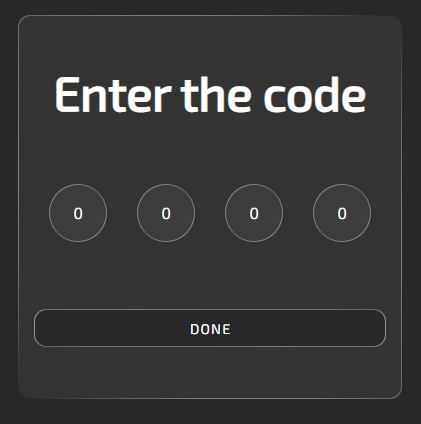
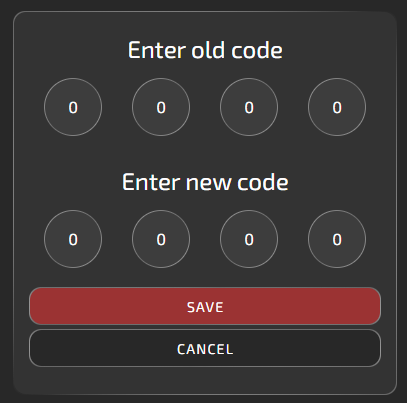
The default code is 0000. After logging in, a user can change it. The code settings are in the upper-right corner of the site, next to the help button.

[![image.png](https://doc.redisage.com/uploads/images/gallery/2025-03/scaled-1680-/j3Vimage.png)](https://doc.redisage.com/uploads/images/gallery/2025-03/j3Vimage.png)
### Panels

#### Overview

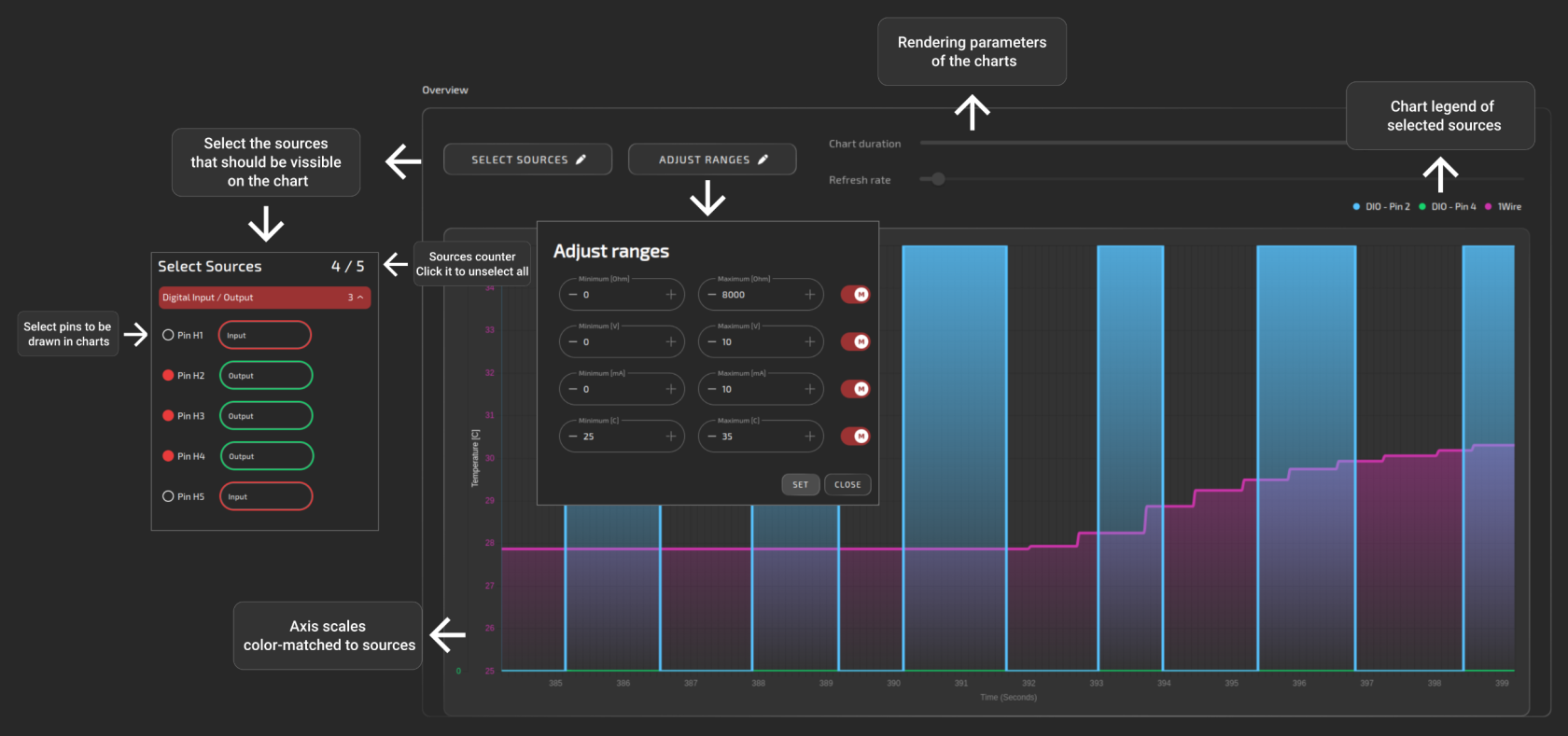
The purpose of this panel is only to display data from different interfaces on a common chart. Output pins are to be controlled via individual interfaces pages.

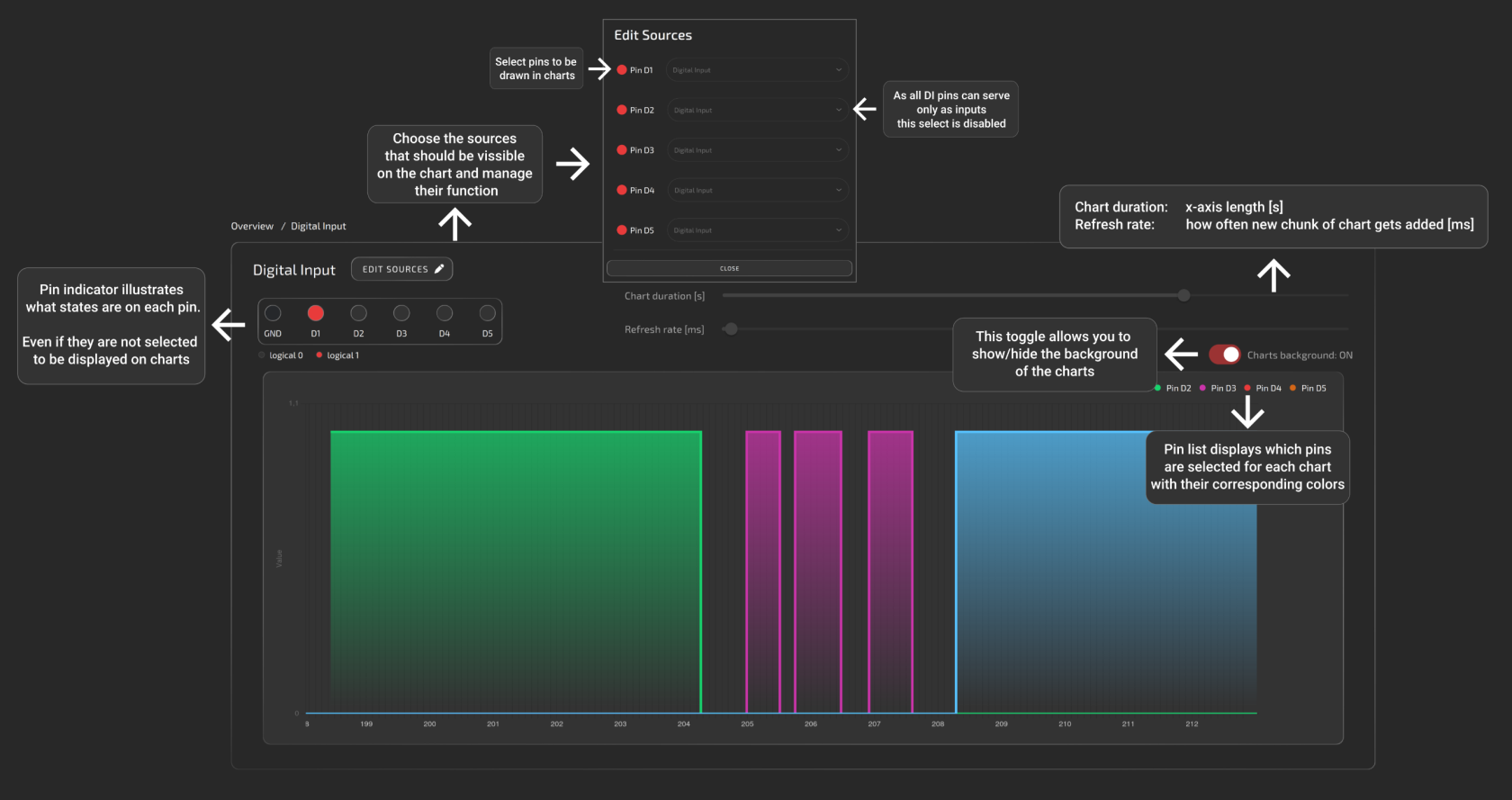
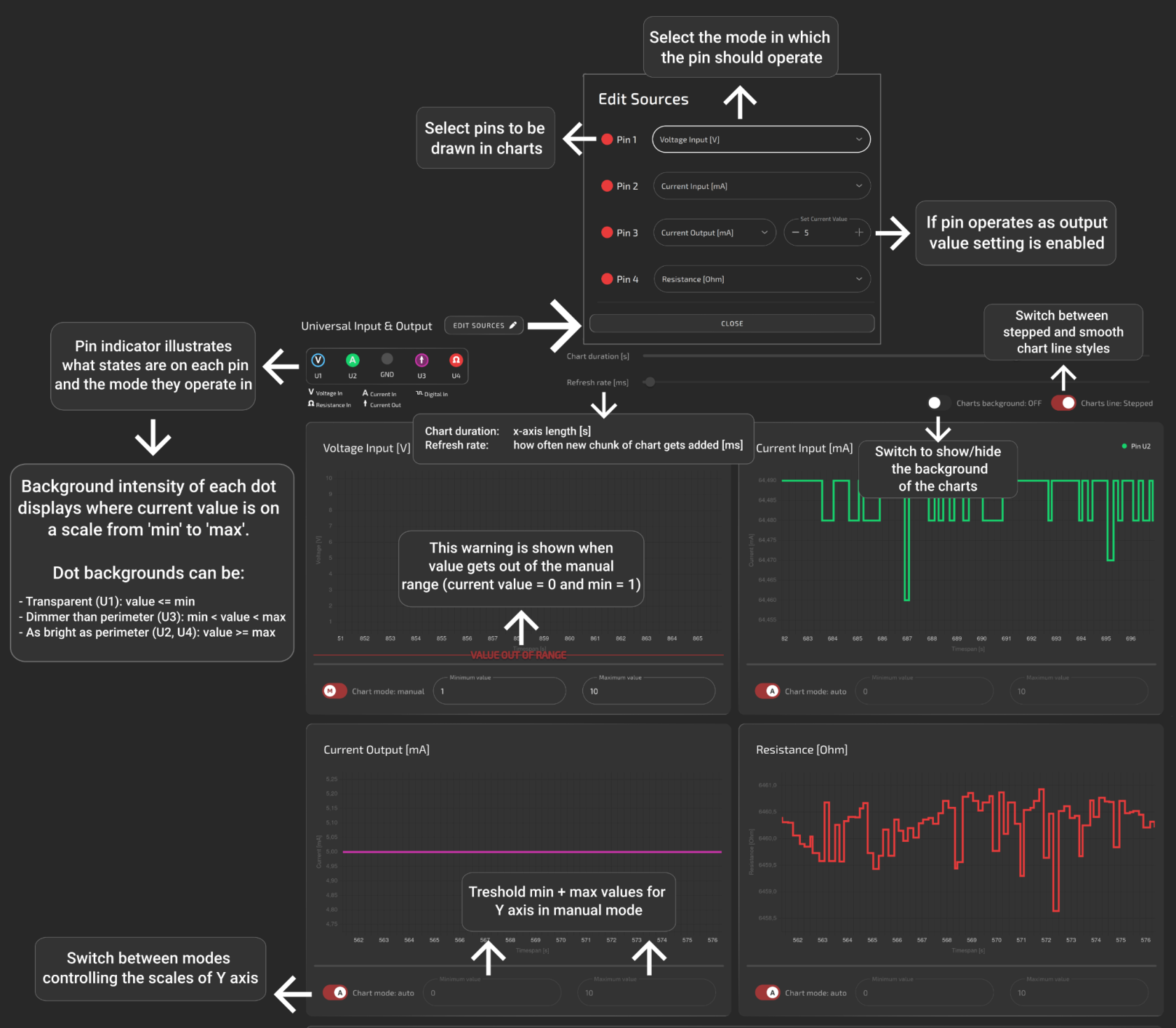
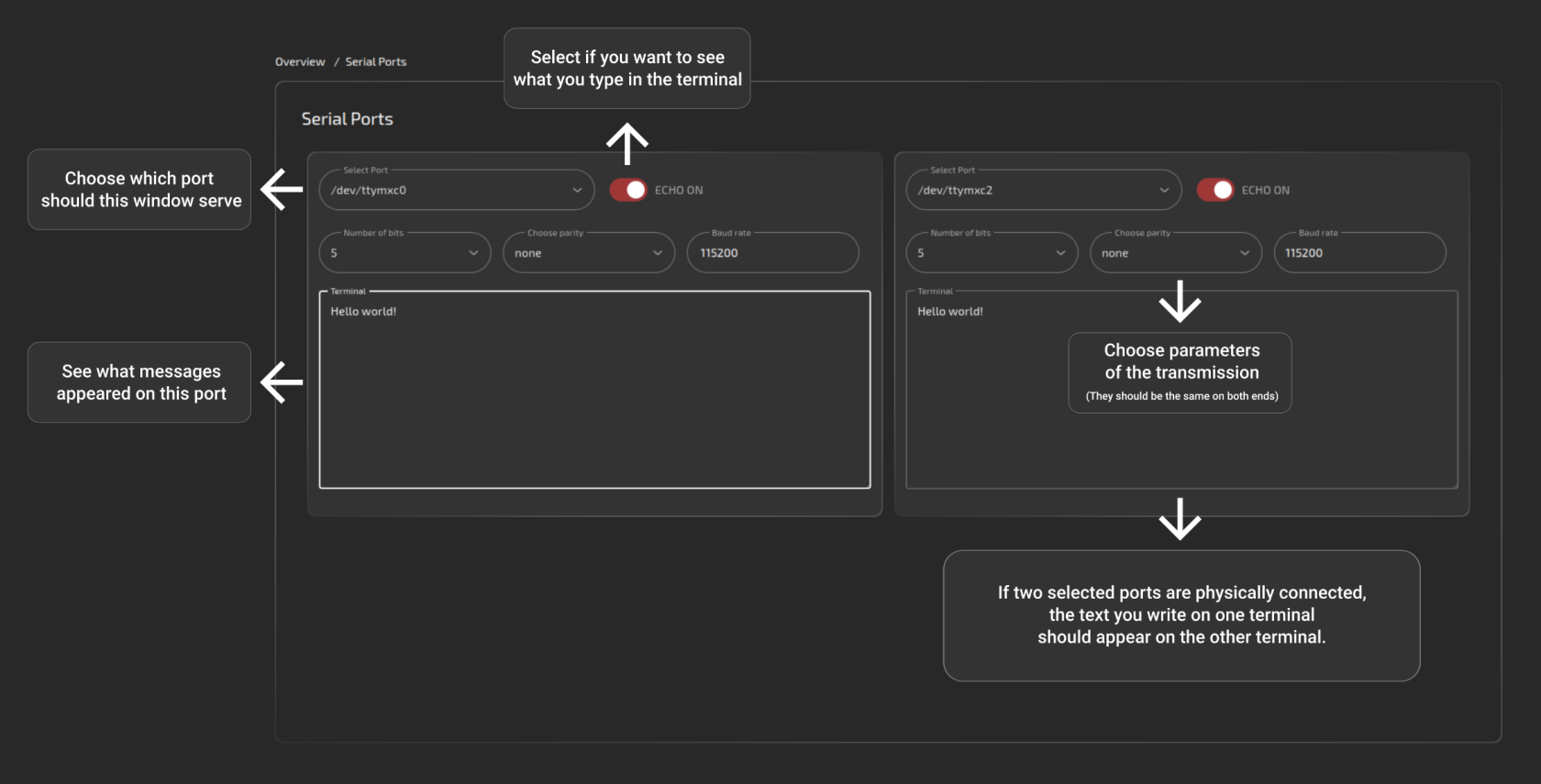
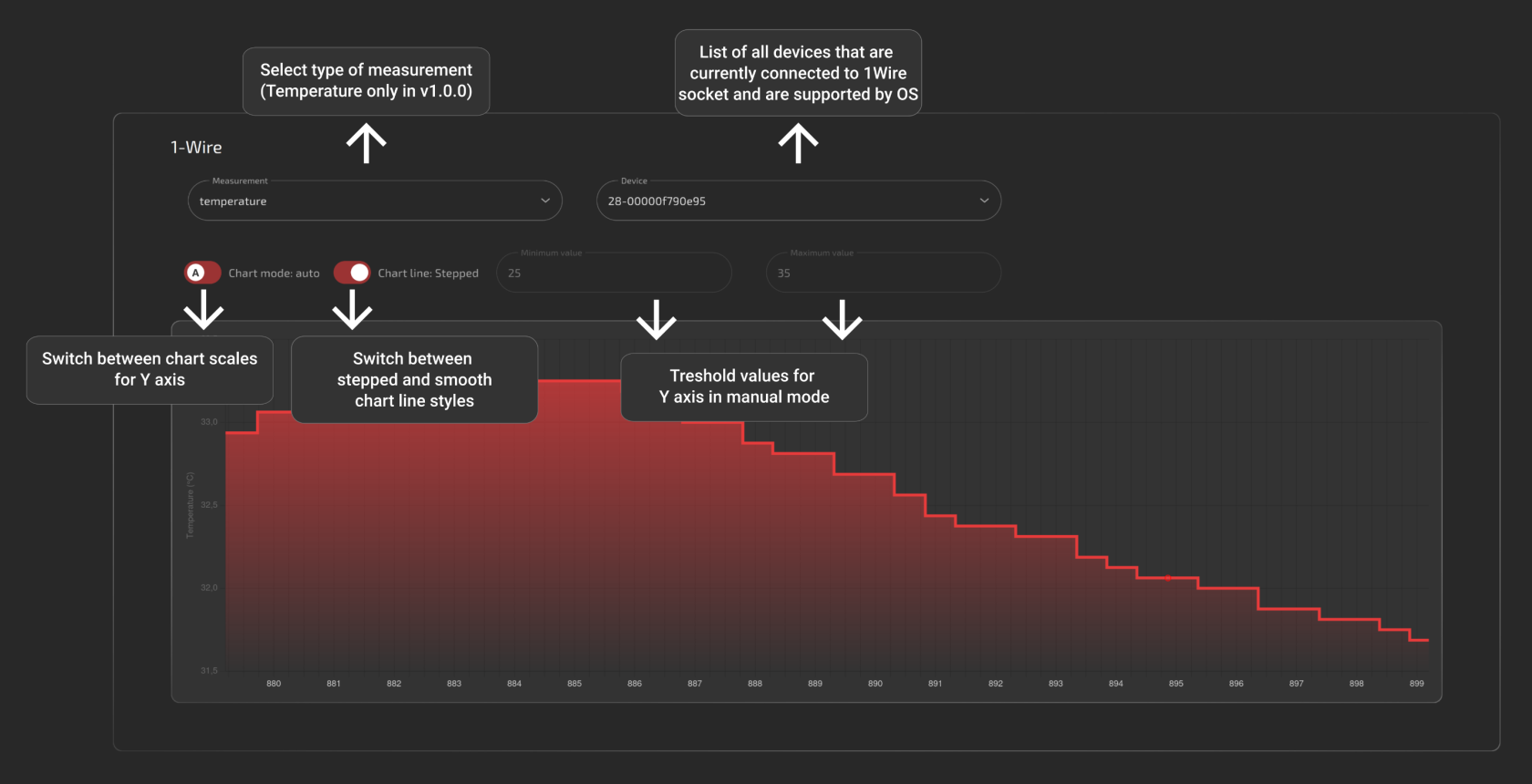
All of the below help images are also available on the site by clicking the question mark in the upper-right corner.

[![image.png](https://doc.redisage.com/uploads/images/gallery/2025-03/scaled-1680-/Da0image.png)](https://doc.redisage.com/uploads/images/gallery/2025-03/Da0image.png)

#### Digital input

[![di.png](https://doc.redisage.com/uploads/images/gallery/2025-03/scaled-1680-/di.png)](https://doc.redisage.com/uploads/images/gallery/2025-03/di.png)
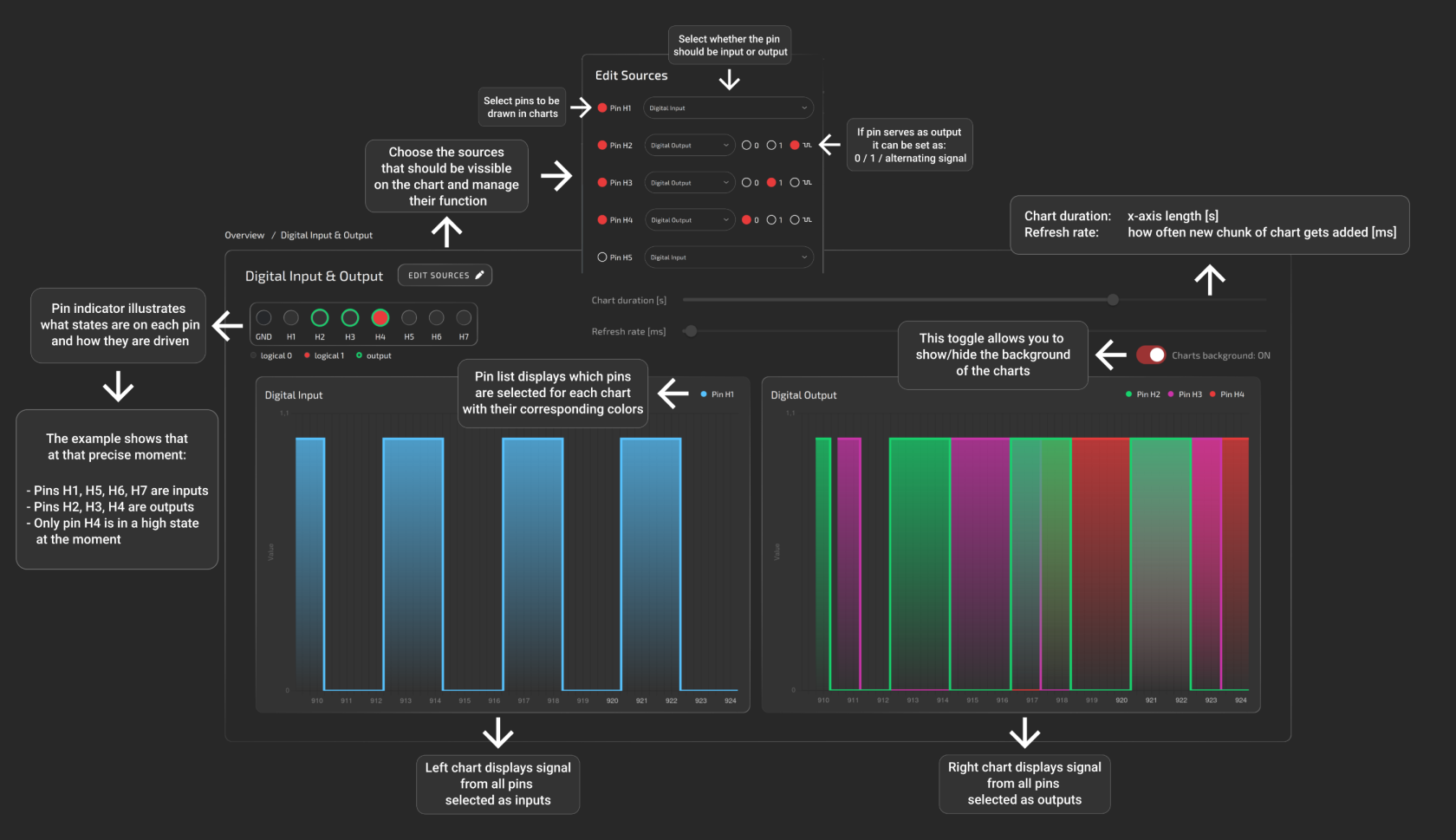
#### Digital input/output

[![dio.png](https://doc.redisage.com/uploads/images/gallery/2025-03/scaled-1680-/dio.png)](https://doc.redisage.com/uploads/images/gallery/2025-03/dio.png)
#### Universal input/output

[![uio.png](https://doc.redisage.com/uploads/images/gallery/2025-03/scaled-1680-/uio.png)](https://doc.redisage.com/uploads/images/gallery/2025-03/uio.png)
#### Serial

[![image.png](https://doc.redisage.com/uploads/images/gallery/2025-03/scaled-1680-/jMUimage.png)](https://doc.redisage.com/uploads/images/gallery/2025-03/jMUimage.png)
#### 1-Wire

[![wire.png](https://doc.redisage.com/uploads/images/gallery/2025-03/scaled-1680-/wire.png)](https://doc.redisage.com/uploads/images/gallery/2025-03/wire.png)
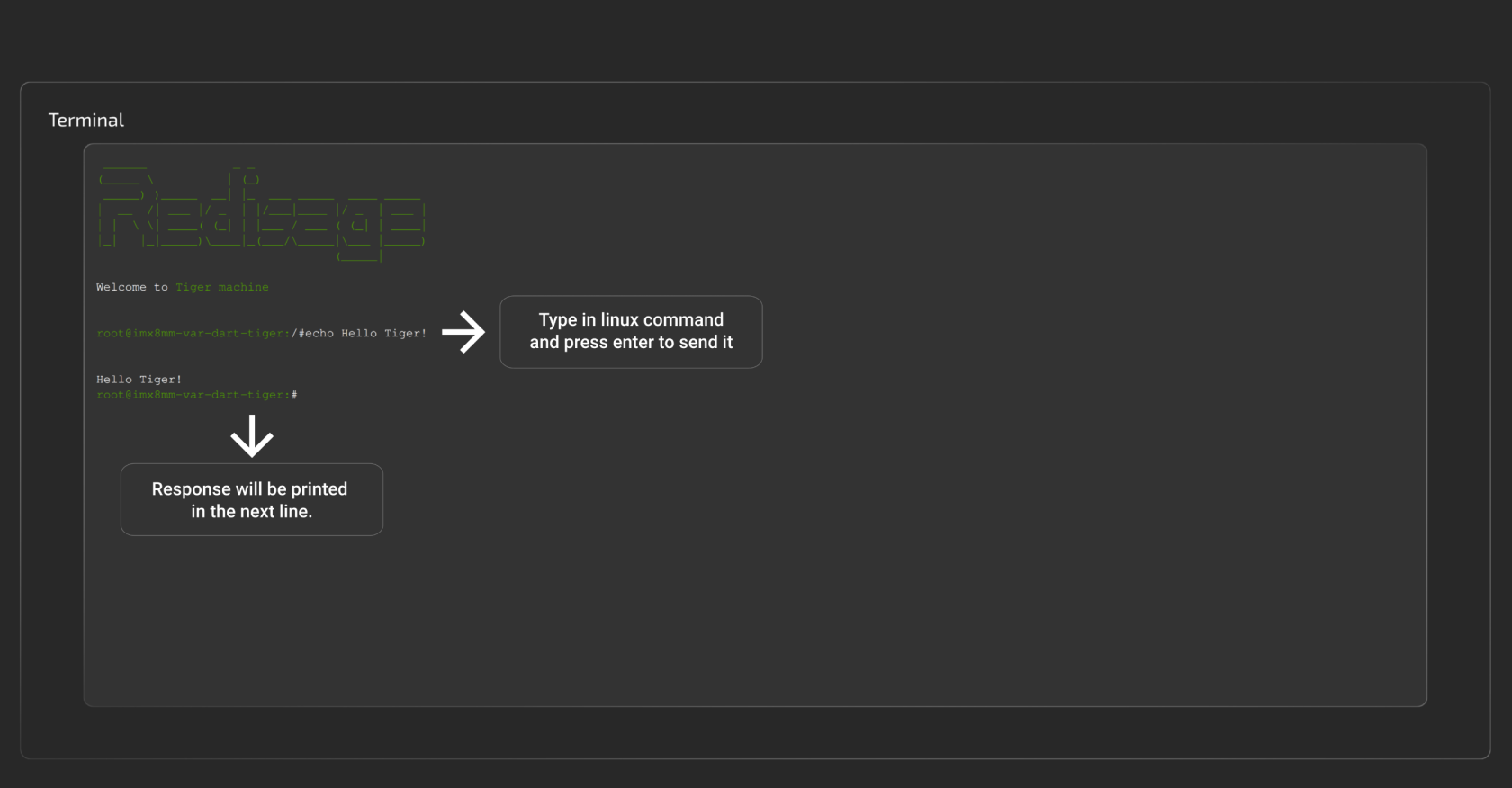
#### Terminal

This panel serves as a terminal emulator for basic communication with the device. It allows navigating through the directories, looking up logs or connected devices and much more.

[![image.png](https://doc.redisage.com/uploads/images/gallery/2025-03/scaled-1680-/AlDimage.png)](https://doc.redisage.com/uploads/images/gallery/2025-03/AlDimage.png)
GitHub repository: soon.

# Notes [DRAFT]

- Add www github reopo - to do
- All examples reworked to rev 3, checked and merged.
- All examples checked and merged.
- Unify the names of the examples (C, Python and Bash examples should have the same name: name.c/.py/.sh).
- Rename GitLab repository folder “**src**” to “**c**” and change **CMakeLists.txt** accordingly.
- **buzzer.sh example modified to wait 2 seconds and turn itself off.**
- **Missing EEPROM\_erase - Bash example - added but needs to be checked.**
- **EEPROM\_SN\_Read.py modified** to work in the same way (“/sys/bus/nvmem/devices/2-0052**3**/nvmem”).
- **Missing ETHERNET - C example - added but needs to be checked.**
- **Missing ETHERNET - Python example - added but needs to be checked.**
- **FLASH\_read.c, FLASH\_read.py and FLASH\_read.sh modified** to work in the same way as other scripts (“/dev/**mtdblock0**”).
- **Missing FLASH\_erase - Bash example - added but needs to be checked.**
- **Missing GSM\_reset - Python example - added but needs to be checked.**
- **GSM\_reset examples - untested.**
- **LED.sh example modified** to wait **1** second and then turn the LEDs off.
- **OLED examples - untested.**
- **Missing onewire - Python example - added but needs to be checked.**
- **onewire examples - untested.**
- **RS232.c example modified - only write to and read from “/dev/ttymxc0”.**
- **Missing RS232 - Python example - added but needs to be checked.**
- **Missing RS232 - Bash example - added but needs to be checked.**
- Original RS485.c - bad device address error (fixed with struct serial\_rs485).
- Original RS485.c does not seem to work properly - only writing is available.
- **RS485.c modified to work in the same way as RS232.c.**
- **Missing RS485 - Python example - added but needs to be checked.**
- **Missing RS485 - Bash example - added but needs to be checked.**
- **Missing RTC - Python example added but needs to be checked.**
- **Missing UIO\_AI\_10V - Python example - added but needs to be checked.**
- **Missing UIO\_AI\_10V - Bash example - added but needs to be checked.**
- **Missing UIO\_AI\_20mA - Python example - added but needs to be checked.**
- **Missing UIO\_AI\_20mA - Bash example - added but needs to be checked.**
- **Missing UIO\_AO - Python example - added but needs to be checked.**
- **Missing UIO\_AO - Bash example - added but needs to be checked.**
- **Missing UIO\_DI - Bash example **- added but needs to be checked.****
- **Missing USB - Python example - added but needs to be checked.**
- **USB examples - untested.**
- **Missing watchdog - C example - added but needs to be checked.**
- **Missing watchdog - Python example - added but needs to be checked.**
- **Missing WIFI - C example - added but needs to be checked.**
- **Missing WIFI - Python example - added but needs to be checked.**
- **WIFI examples should also have the AP mode implemented.**