| **Features** | [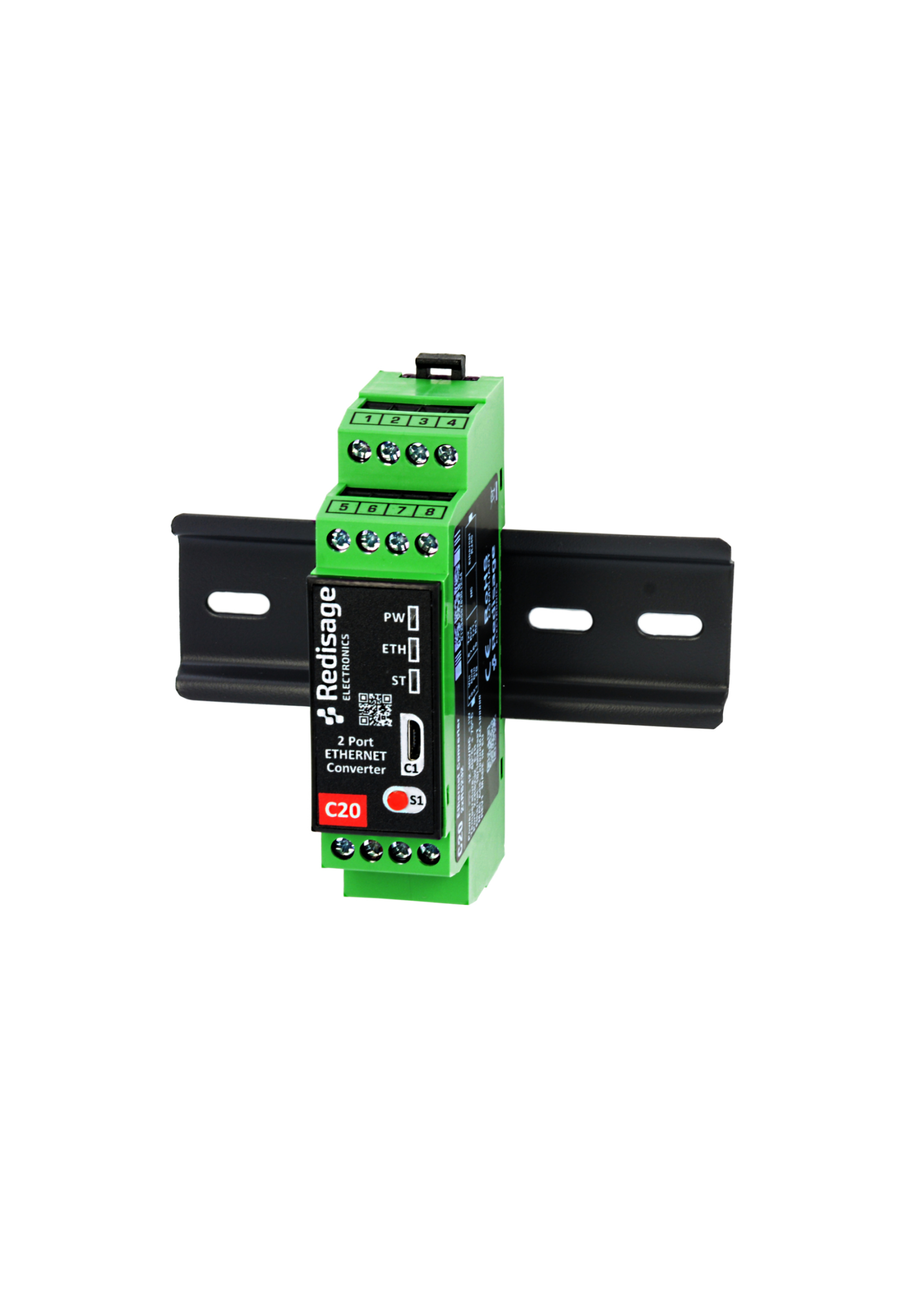](https://doc.redisage.com/uploads/images/gallery/2024-03/c5368820-11b3-4934-ae6d-774d7208eae7.png) |
|---|---|
| Ethernet converter to RS232/RS485 | |
| ESD protection for the RS485 data line | |
| Power supply: +12 to +30 VDC | |
| Transmission speed up to 115200 bps | |
| Tx, Rx and power LED indicators | |
| RS485 embedded termination 120 ohm | |
| Operating temperatures: -40°C to +75°C | |
| DIN rail mounting | |
| Dimensions: 90x56.4x22.5 mm | |
| **3 years warranty** | |
| **Customization of OEM is welcomed** |
| **Converters C20 - C22** | **Converters C23 - C25** | ||||
| [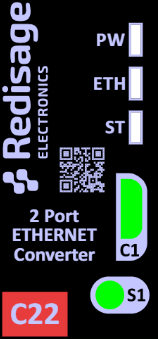](https://doc.redisage.com/uploads/images/gallery/2024-03/20708068-859a-46bf-8b76-783b7400789a.png) | [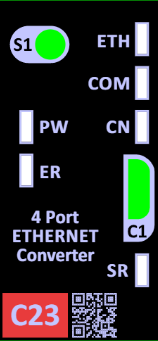](https://doc.redisage.com/uploads/images/gallery/2024-03/66a7b90e-9af7-4b47-ae63-40409f98a845.png) | ||||
| **LED indicator** | **Color** | **Function** | **LED indicator** | **Color** | **Function** |
| PW | Blue | Power | PW | Blue | Power |
| ETH | Green | Network activity | ETH | Green | Network activity |
| ST | Orange | Console mode | CN | Yellow | Console mode |
| Red | Service mode | COM | Green | RS232/RS485 activity | |
| SR | Red | Service mode | |||
| ER | Yellow | Error | |||
In the C22 converter user should use only RS232 or only RS485 interface of one port as they occupy the same internal bus of the device.
# Configuration by the Web Page ## {{@174#bkmrk-remotecom-%28c20---c25}} This page presents capabilities of the Ethernet Converters configuration. First, make sure that converter is connected to power supply and to the LAN using a patch cord. If the device has no static IP set up, it will be necessary to obtain its IP address in the local network. User interface is mostly similar for all converters, but some subpages might be different for several models depending on amount of interfaces. In order to avoid issues, click on a “Help” button in the top right corner on every page. ### Default configuration Default configuration of the Ethernet Converters: - IP address: **192.168.100.100** - Subnet mask: **255.255.255.0** - Gateway: **192.168.100.1** - DNS 1: **192.168.100.1** - DNS 2: **8.8.8.8** Default login details: - Username: **admin** - Password: **admin123** ### Login To access the web page open the browser, type device’s IP address of the converter (default is **192.168.100.100**). Then log in using user’s personal credentials. If it is a first configuration or the converter had a factory reset, use default login details (login: **admin**, password: **admin123**). [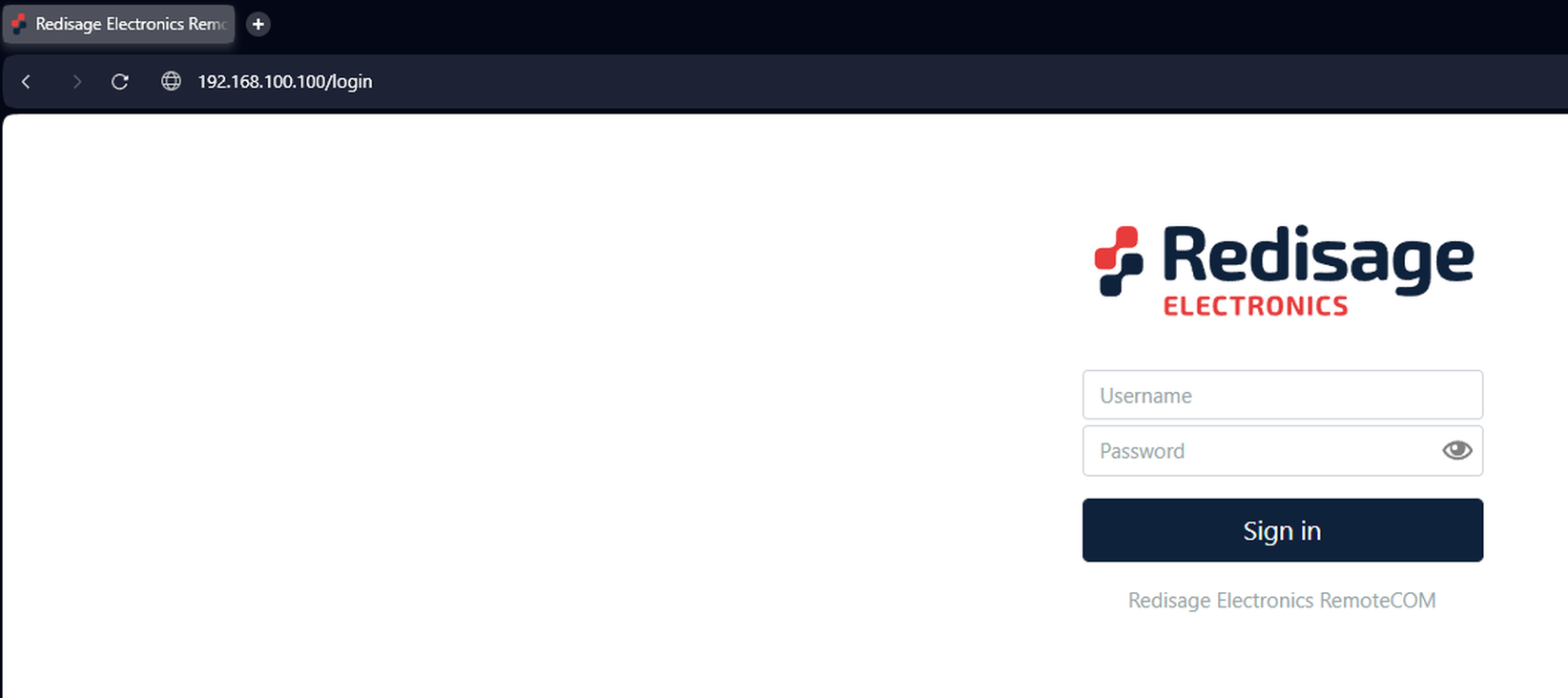](https://doc.redisage.com/uploads/images/gallery/2025-03/1vpimage.png)The configuration is available only if devices are connected to the same Local Area Network as the computer used for it.
### Status page After a successful login, there should be an insight to important information such as: port status, service and ports which are in use and other details about the connection. [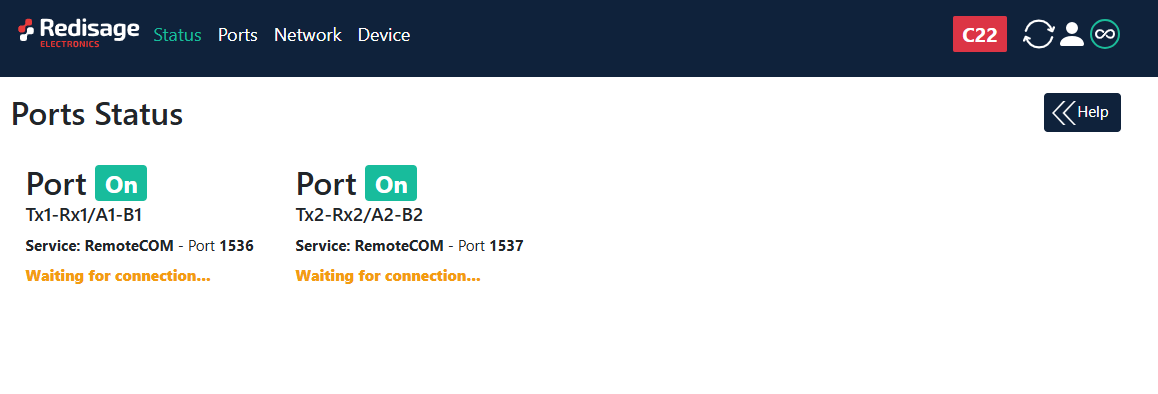](https://doc.redisage.com/uploads/images/gallery/2025-09/Hrbimage.png) #### Changing username or password After clicking “Edit User” under the user icon, it is possible to change the username or the password. [](https://doc.redisage.com/uploads/images/gallery/2025-09/AiNimage.png) [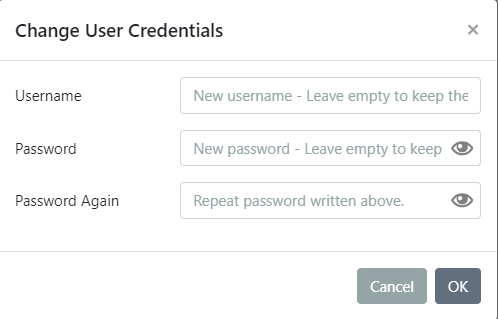](https://doc.redisage.com/uploads/images/gallery/2024-03/08cea4a8-e1e1-4241-a0ea-bf987363d2b7.png)If login details were forgotten, it would be necessary to do a factory reset via a USB/UART converter and a serial console.
### Ports page This page allows configuring the device’s ports. There is a toggle switch next to the “Port” label by which it is possible to turn ON/OFF any particular ports. [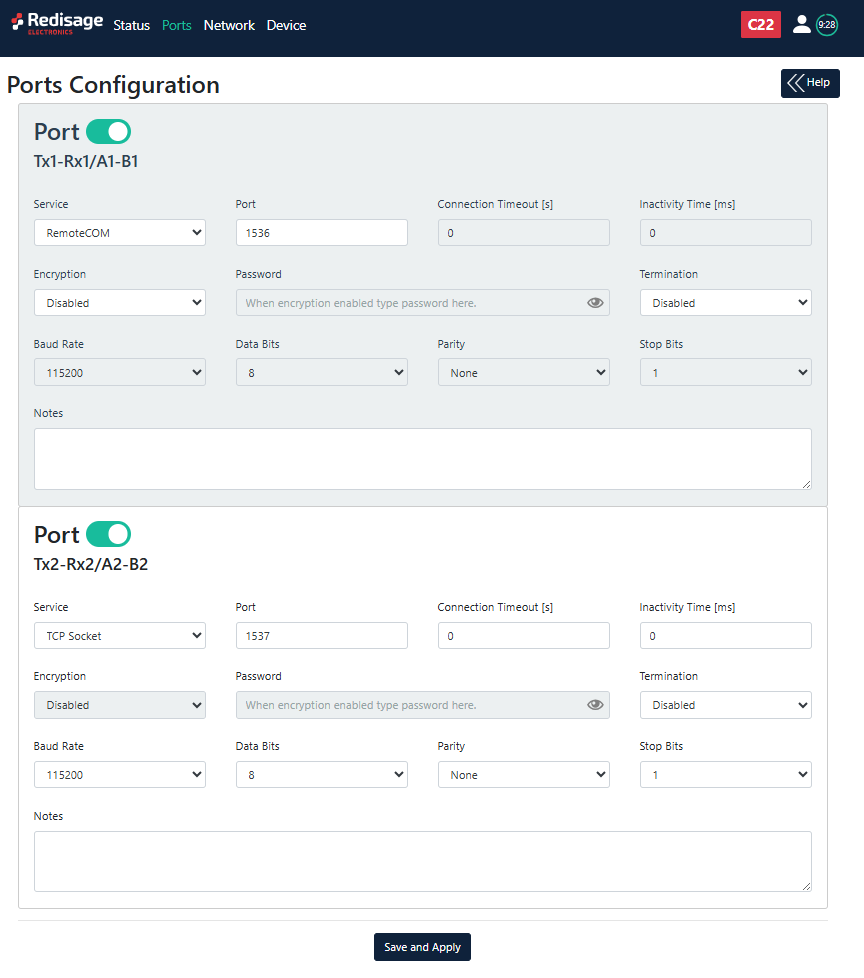](https://doc.redisage.com/uploads/images/gallery/2025-09/0ALimage.png) {{@170#bkmrk-item-description-ser}}Changing port’s service closes all sockets connected to the ports.
In the UDP mode, port number 15051 is reserved for UDP broadcast service.
### Network page In this section, network settings can be changed according to target LAN parameters. [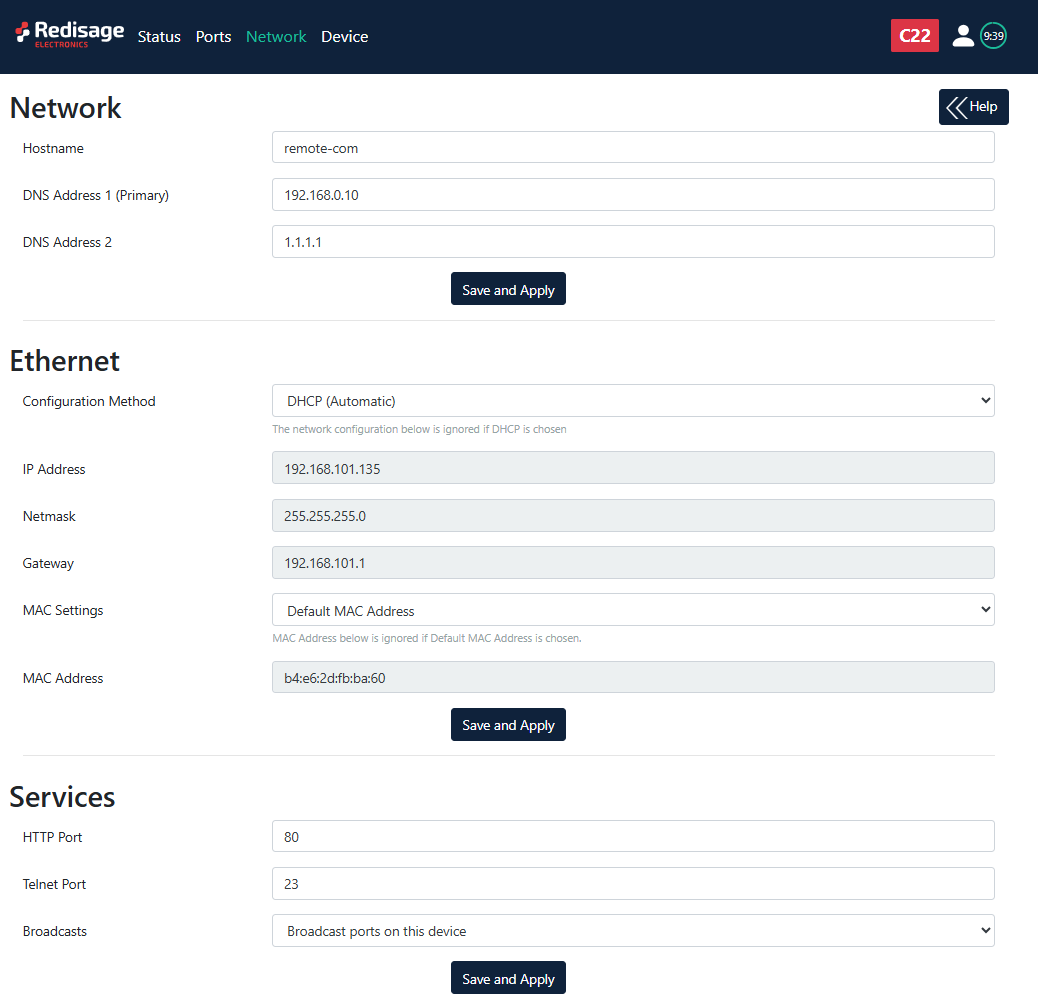](https://doc.redisage.com/uploads/images/gallery/2025-09/NMsimage.png) {{@170#bkmrk-item-description-con}} {{@170#bkmrk-item-description-htt}} It is possible to obtain a dynamic IP address. Just switch configuration method from static IP to DHCP (automatic). This process may cause some issues with identifying converters in LAN unless there is an access to the device which is responsible for allocating IP addresses. Keep in mind that in case of changed IP address user needs to type a new IP in the address bar and log in again. ### Device page On the device page there are tools used to a firmware update, a factory reset and a device reboot. [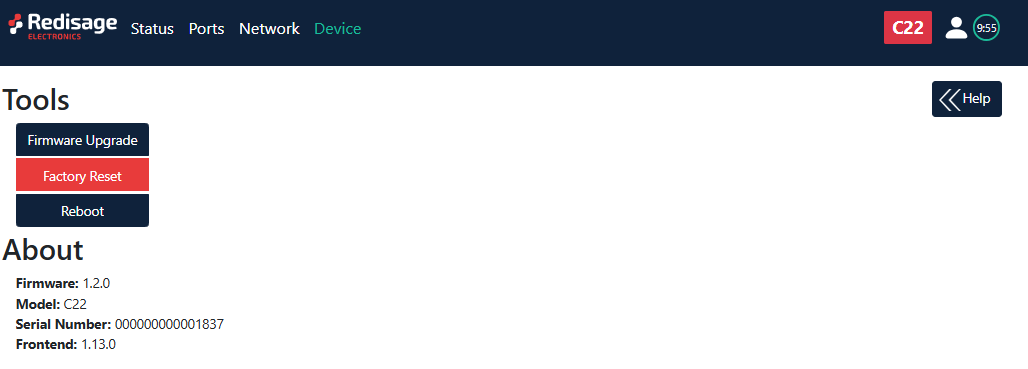](https://doc.redisage.com/uploads/images/gallery/2025-09/Hqtimage.png) {{@170#bkmrk-item-description-fir}} #### Firmware update The device firmware update must not be interrupted. Update the device only if experiencing issues, being instructed to do so by our support or requiring the latest features/bugfixes. Failure during the update may 'brick' the device and make it unusable. [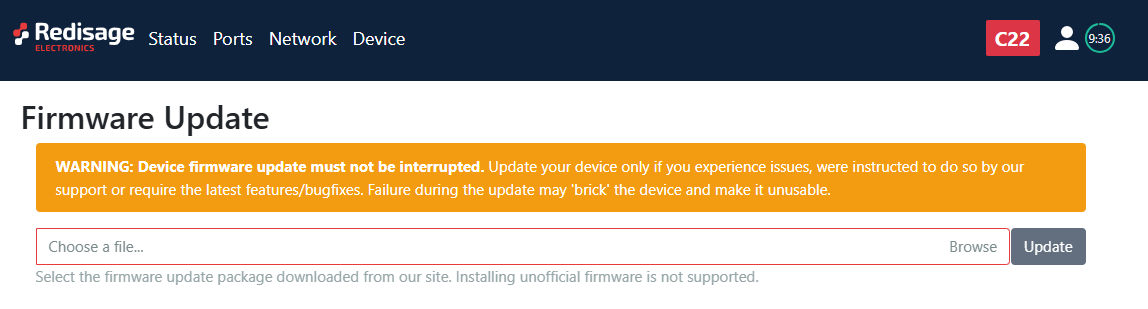](https://doc.redisage.com/uploads/images/gallery/2025-09/1Ijimage.png)Use the **remote-com-esp32.fir** file for a firmware update.
#### Factory reset To restore default settings, press the “Factory Reset” button. After that, user will be asked to type “RESET”. Then it will take a few seconds to reload the web page and restart the device. After the reset use default login details (login: **admin**, password: **admin123**; default IP**: 192.168.100.100**). [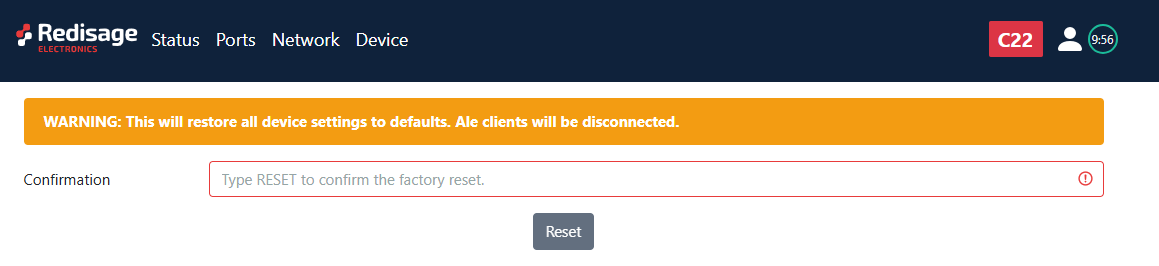](https://doc.redisage.com/uploads/images/gallery/2025-09/eCHimage.png) # Configuration by the Telnet Console ## {{@174#bkmrk-remotecom-%28c20---c25}} The device can be also configured via the Telnet Console. Firstly, make sure that converter is connected to the power supply and to the LAN using a patch cord. Knowledge of the device’s IP address (default is **192.168.100.100**) and Telnet port number (default is **23**) is necessary to establish a connection. Use command below in a terminal window to connect to the device: ```bash telnetThe configuration is available only if devices are connected to the same Local Area Network as the computer used for it.
### {{@170#bkmrk-list-of-all-commands}} {{@170#bkmrk-command-description-}} {{@171}} ### Additional notes After some time of inactivity, session will be disconnected automatically. In order to avoid issues like connecting to the host, type “help” to get more information. To get more details about every particular command, append “help” after each commands (example: "ipconfig help"). Factory reset is not available from the Telnet Console level. # Configuration by the Serial Console ## {{@174#bkmrk-remotecom-%28c20---c25}} Another way to configure the device is via a serial console. In case of the C20 - C22 Ethernet Converters an additional USB/UART converter is needed. ##### {{@173#bkmrk-procedure-to-enter-s}} {{@173#bkmrk-turn-off-the-power-o}} ##### {{@173#bkmrk-procedure-to-enter-s-1}} {{@173#bkmrk-install-stm32-virtua}} [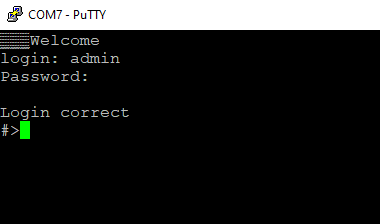](https://doc.redisage.com/uploads/images/gallery/2024-03/a5a95447-11ad-467f-afc0-dd83c392aa44.png) ### {{@170#bkmrk-list-of-all-commands}} {{@170#bkmrk-command-description-}} {{@171}} ### Service mode #### {{@173#bkmrk-procedure-to-enter-s-2}} {{@173#bkmrk-turn-off-the-power-o-1}} #### {{@173#bkmrk-procedure-to-enter-s-3}} {{@173#bkmrk-install-stm32-virtua-1}} #### {{@170#bkmrk-list-of-commands-in-}} {{@170#bkmrk-command-description--1}}{{@170#bkmrk-in-the-service-mode%2C}}
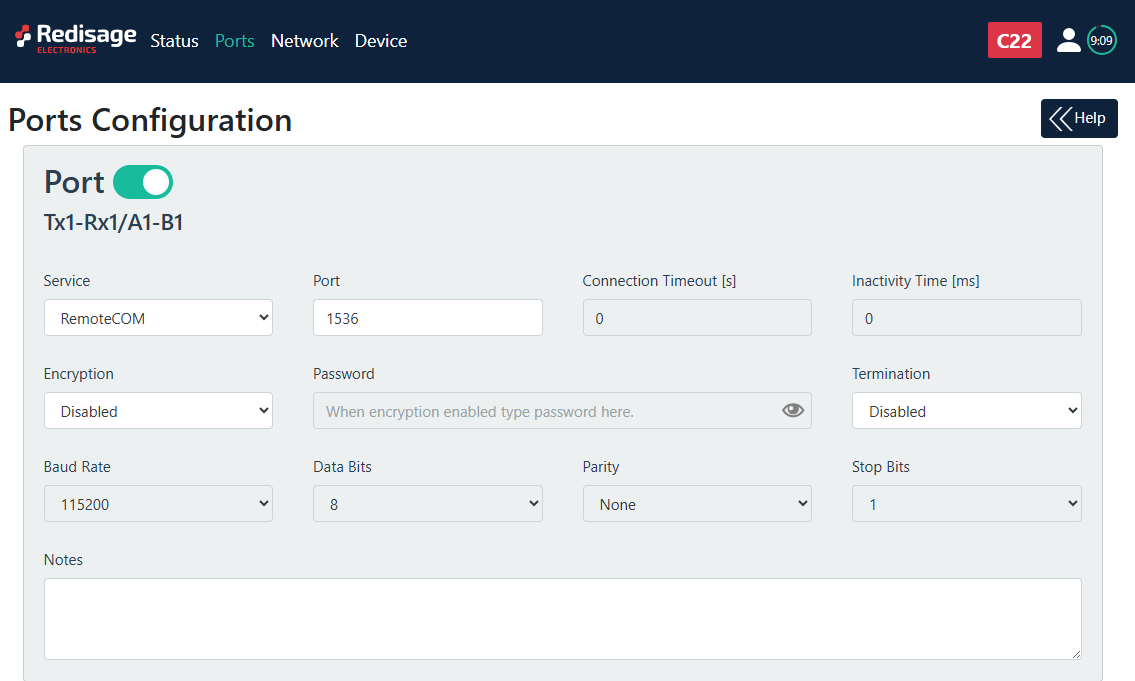
##### Factory reset To restore default settings, type “defaults”. After that, user will be asked to type “default network” to reset the network settings as well. Then user will be informed if the process is successful. Default login details: \- login: **admin** \- password: **admin123** \- IP: **192.168.100.100** ### Additional notes In order to avoid issues like connecting to host, type “help” to get more information. To get more details about every particular command, append “help” after each commands (example: "ipconfig help"). # Redisage Configurator ## {{@174#bkmrk-remotecom-%28c20---c25}} Redisage Configurator is an app used to emulate connection between converter and a PC as if its RS232/RS485 ports would be connected directly to the COM port. The advantage of that functionality is lack of additional cables. Transmission can be tested over Ethernet. First connect the device to a local network using the Ethernet port and power it up. During the configuration process set “Service” to the RemoteCOM option on the “Ports” page.While changing port service from RemoteCOM to TCP/UDP Socket make sure to disable RemoteCOM virtual port in the Redisage Configurator first.
[](https://doc.redisage.com/uploads/images/gallery/2025-09/jdMimage.png) ### Redisage VSP Driver In order for Redisage Configurator to work properly, it is necessary to install the Redisage VSP Driver. It can be done with RedisageVSPDriver Installer available for Windows. Download it for free from our [Redisage shop](https://redisage.com/free-virtual-serial-port-windows-driver/sw01). [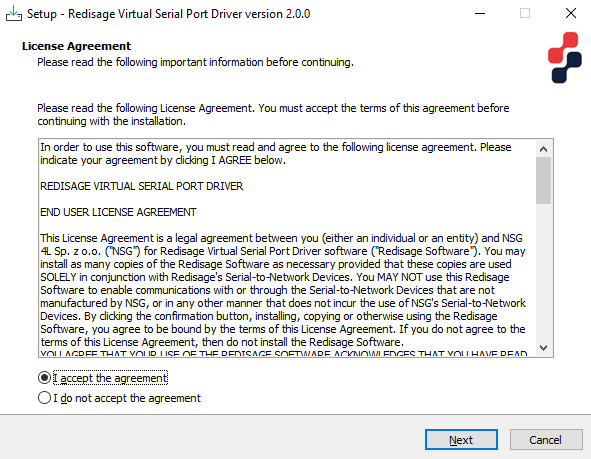](https://doc.redisage.com/uploads/images/gallery/2024-03/4e06a5a0-4a26-4fb3-b676-8b6d856b08d2.png) ### Redisage Configurator When the device is configured open the Redisage Configurator app. [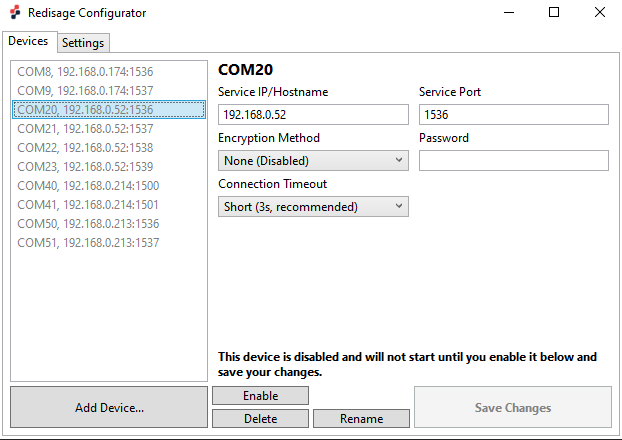](https://doc.redisage.com/uploads/images/gallery/2024-03/11350c46-7007-4fcb-add1-062c5c31ef21.png) Use the “Add Device” button to set up a new connection with a device. On the right side there should be a list of available devices visible. Choose one of them or specify a custom COM port number, an IP address and a service port number.While specifying a custom virtual COM make sure to use the same IP address and service port as set earlier in the port configuration.
[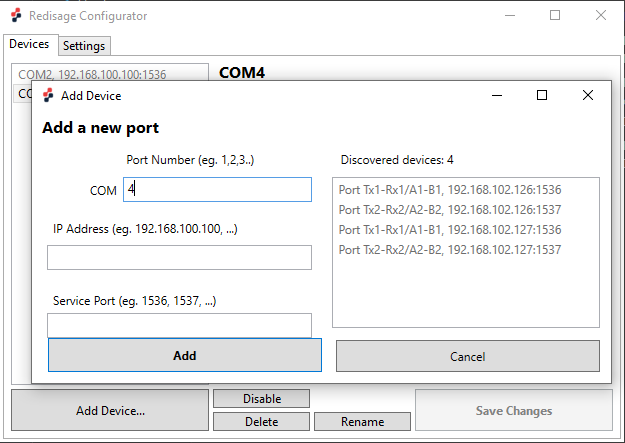](https://doc.redisage.com/uploads/images/gallery/2024-03/7d9e3ea8-6904-4f6d-b072-47b15c80d60c.png) In order to establish a connection with a desired device use the “Enable” button. To end the connection use the “Disable” button. Service IP/hostname, service port and password can be modified at any time. There are also available 2 options of the encryption methods (none (disabled) or strong (AES-GCM 128-bit, Argon2)) and 5 options of the connection timeout (brief, short, fair, modest or lengthy). Changes have to be saved with “Save Changes” button. [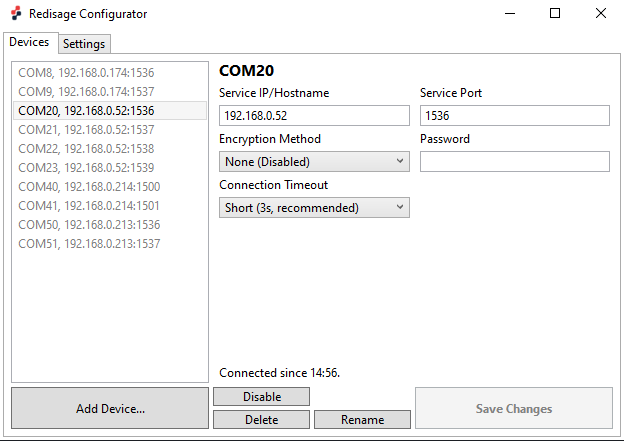](https://doc.redisage.com/uploads/images/gallery/2024-03/434ace32-b439-47be-b821-da79cef2b770.png) There is also the “Settings” tab at the top of the window from where the Logging Directory or the Device Manager can be opened. [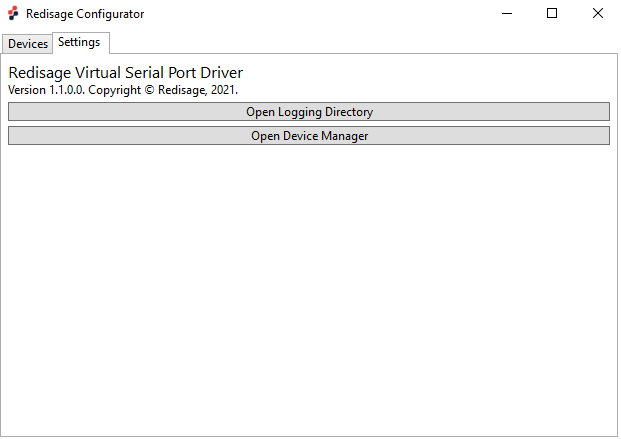](https://doc.redisage.com/uploads/images/gallery/2024-03/ae6fd1d6-457d-4da4-82bc-99785acd103f.png) If everything is connected properly there should be a new COM port available in the Device Manager. It is also possible to check it, for example, on the web page.If any change is made to the port configuration, make sure to apply it with the “Save Changes” button.
### Troubleshooting If a discovered device cannot be added, check if it hadn’t been added before with a different COM port / service port. In that case, delete previous configuration from the Redisage Configurator. If that won’t work, check if the port service was configured correctly for the RemoteCOM Service. # FAQ ## {{@174#bkmrk-remotecom-%28c20---c25}} ### How to obtain an IP address of the device? The default static IP address of the device is **192.168.100.100**. However, if the DHCP option is set, it will be necessary to obtain the IP address from a local network. First of all, connect the device to the local network (for example via a network switch). The easiest way to find the IP address of the device is via the Serial Console. After a successful login use “ipconfig” command to print all the information about the Ethernet connection. The IP address should be shown there. ### How to recover an access to the device after the password was lost? The only option to reset the user’s password is to do a hard reset via the service mode in the Service Console. To restore default settings, including login and password, type “defaults” in the terminal. Now the default credentials are: - login: **admin** - password: **admin123** ### I cannot set up the virtual COM through the Redisage Configurator app. What should I do? If in the Redisage Configurator a discovered device cannot be added, check if it hadn’t been added before with a different COM port / service port. In that case, delete previous configuration from the Redisage Configurator. If that won’t work, check if the port service was configured correctly for the RemoteCOM Service. ### How to check if the device is configured correctly? The device’s status can be checked on the “Status” page of the configuration website. If a connection with the device is established, there should be a corresponded label visible (“Server is starting…”, “Waiting for connection” or “Client connected!”).