User Manual
- Configuration by the Web Page
- Configuration by the Telnet Console
- Configuration by the Serial Console
Configuration by the Web Page
Modbus TCP/RTU M-bus Gateways (G20, G30)
This page presents capabilities of the Converters configuration. First, make sure that the converter is connected to the power supply and to the LAN using a patchcord or wireless via Wi-Fi. If the device has no static IP set up, it will be necessary to obtain its IP address in the local network. User interface is mostly similar for all gateways, but some subpages might be different for several models depending on amount of interfaces. In order to avoid issues, click on a “Help” button in the top right corner on every page.
Login
To access the web page, open the browser, type the device’s IP address of the converter (default is 192.168.100.100). Then log in using user’s personal credentials. If it is a first configuration or the converter had a factory reset, use default login details (login: admin, password: admin123).
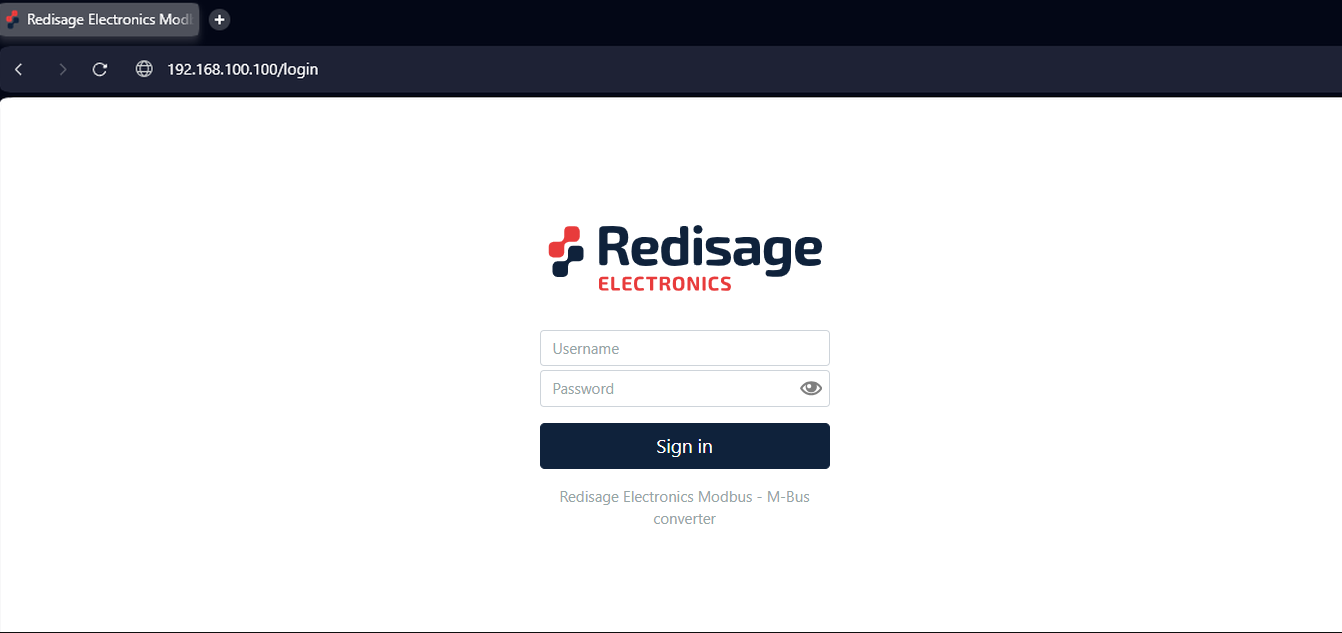
The configuration is available only if devices are connected to the same Local Area Network as the computer used for it.
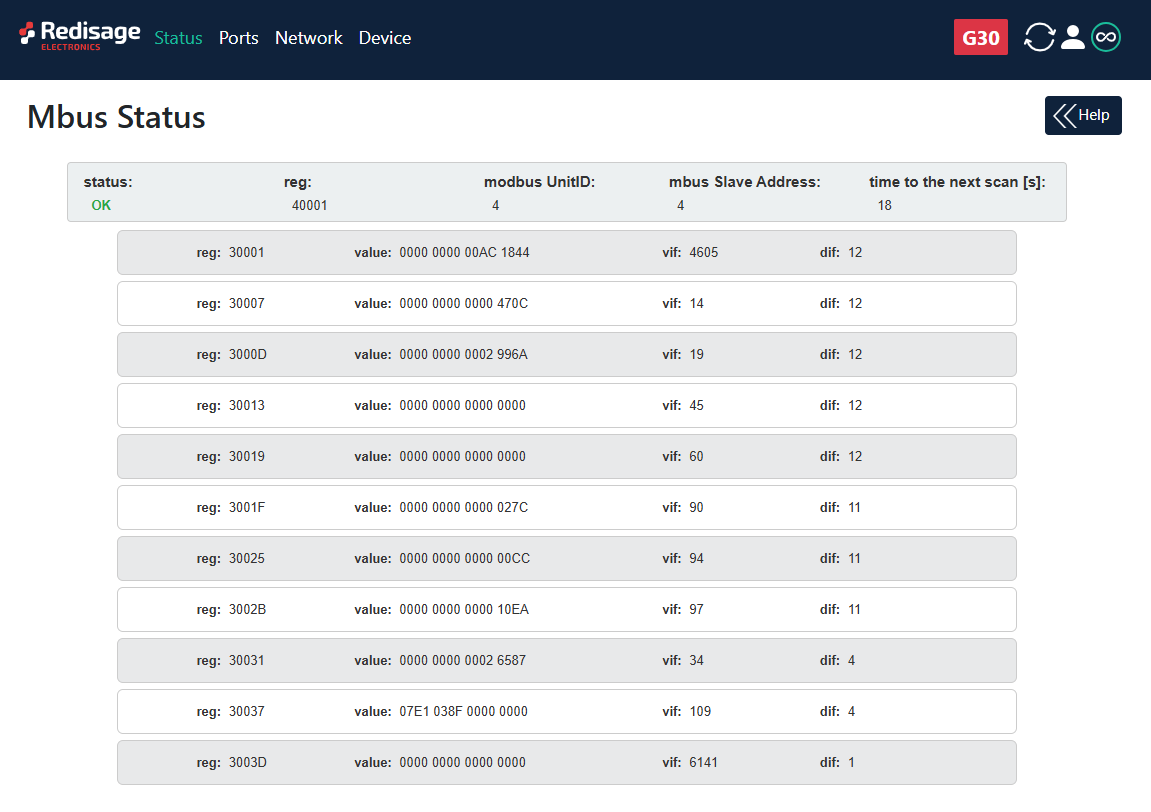
Status page
After a successful login, there should be an insight to a list of available connections. If there is more than one connection, it is possible to sort them by ID, timestamp or status.
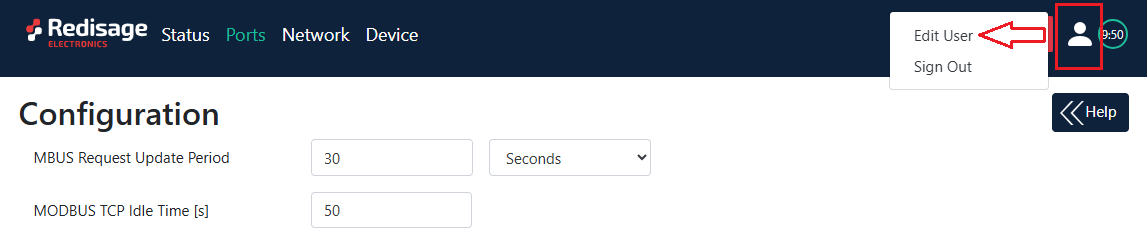
Changing username or password
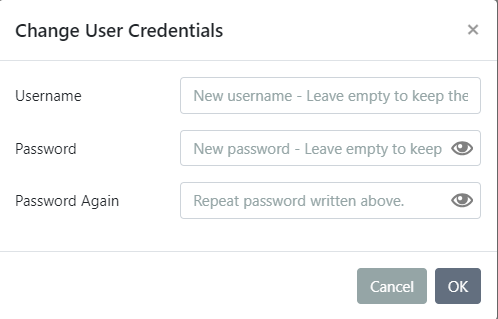
After clicking “Edit User” under the user icon, it is possible to change the username or the password.
If login details were forgotten, it would be necessary to do a factory reset via a USB/UART converter and a serial console.
Ports configuration
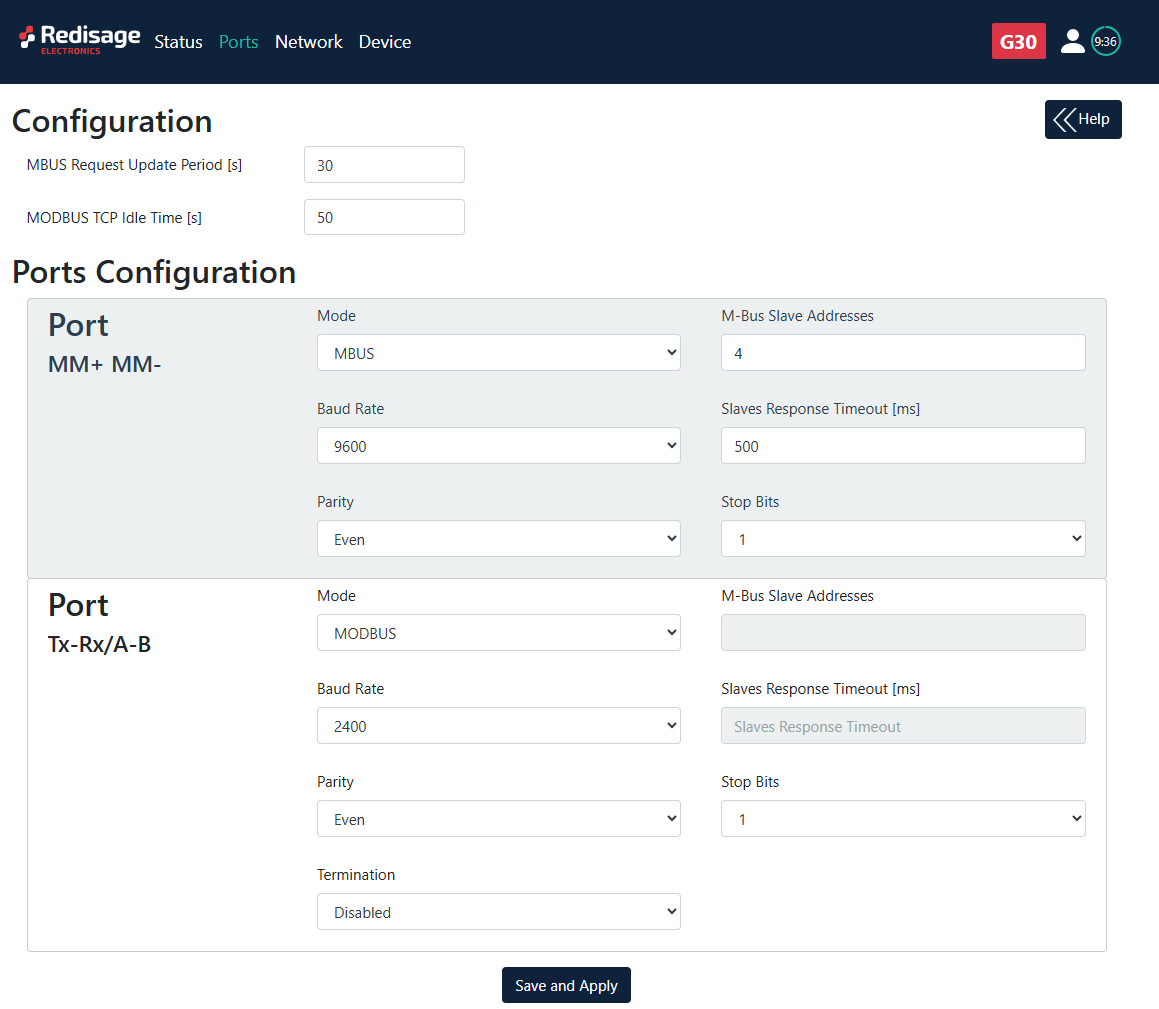
|
Item |
Description |
|
|
MBUS Request Update Period |
Choose M-BUS Request Update period. |
|
|
MODBUS TCP Idle Time |
Choose Modbus TCP Idle Time. |
|
|
Mode |
MBUS |
Switch device's mode to M-Bus. |
|
MODBUS |
Switch device's mode to Modbus slave. |
|
|
Slaves |
Type slave device address. Multiple addresses can be written in one field, e.g. 9;11;14-17;80. |
|
|
Slaves Response Timeout |
Type slave devices response timeout. |
|
|
Baud Rate |
Choose baud rate. |
|
|
Parity |
Type of parity. |
|
|
Stop Bits |
Number of stop bits. |
|
|
Termination |
Enable RS termination. |
|
Make sure to save all the changes with “Save and Apply” button located on the bottom of the page.
Network settings
In this section, network settings can be changed according to target LAN parameters.
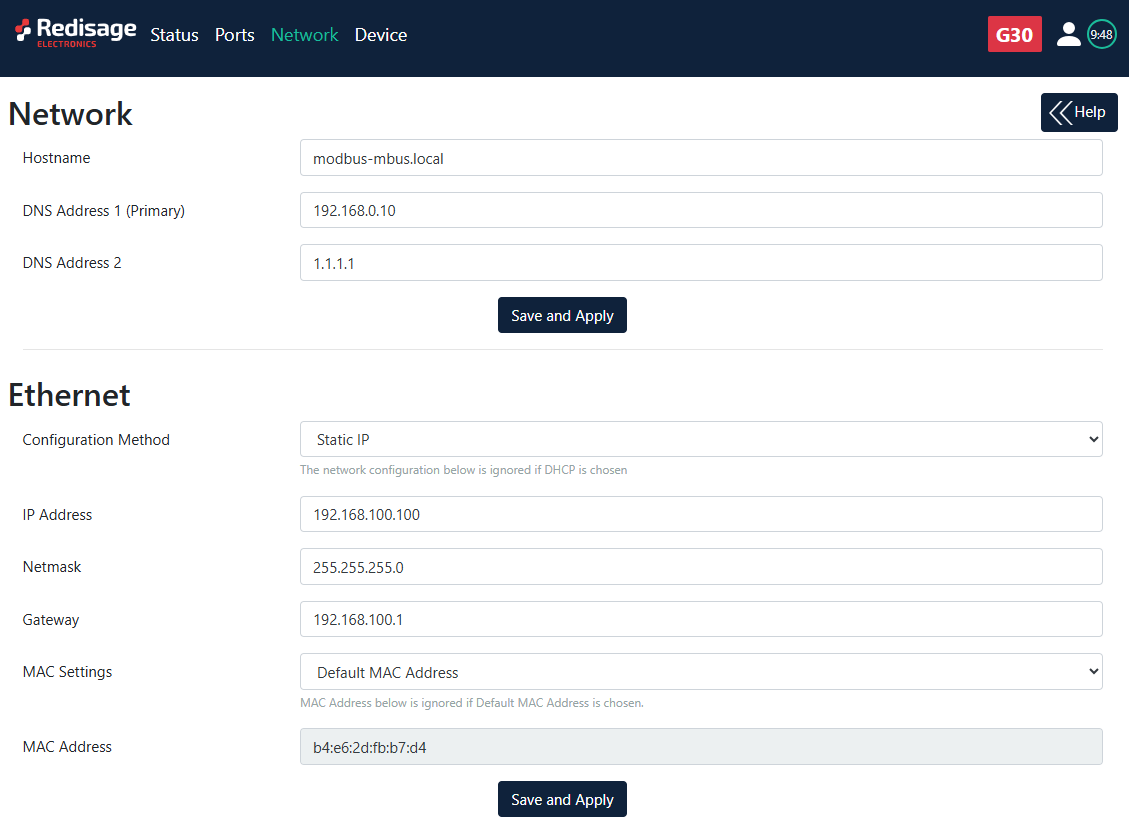
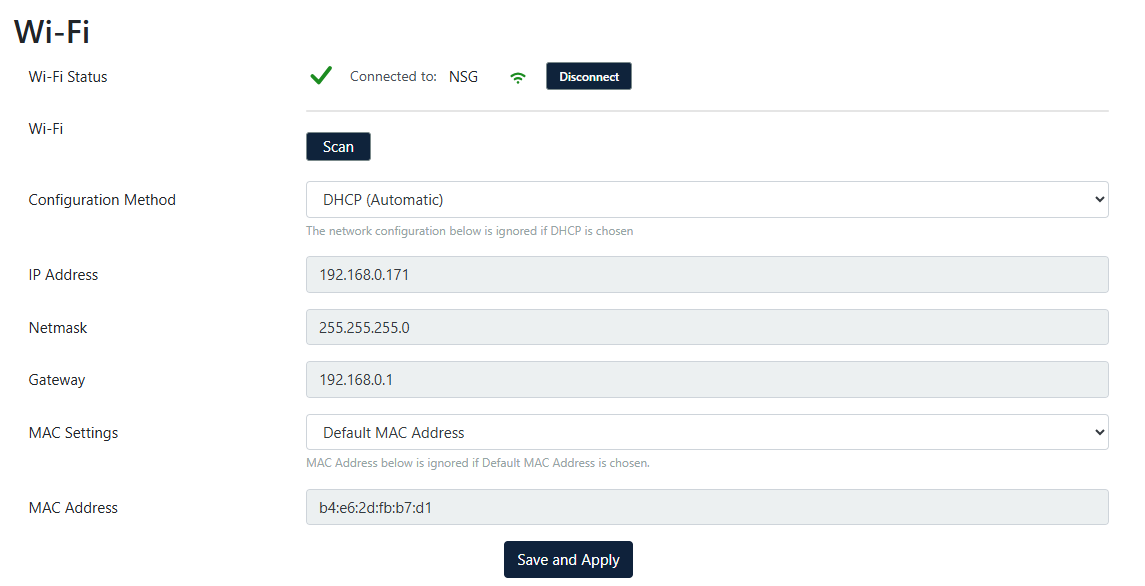
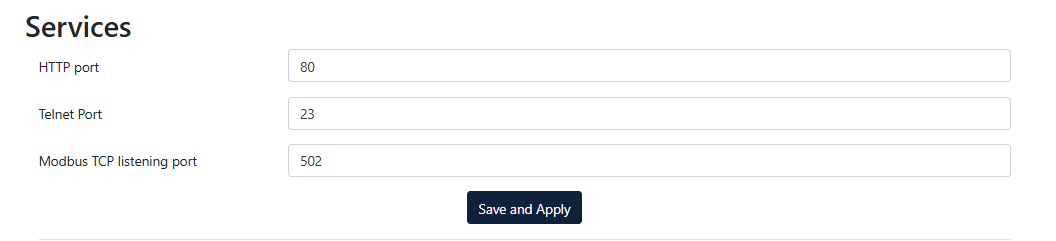
|
Item |
Description |
|
Hostname |
Label that is assigned to the device. |
|
Configuration Method |
Enable/disable the DHCP server. If the DHCP server is disabled, the IP address of the device has to be set manually. |
|
IP Address |
IP address of the device. |
|
Netmask |
Netmask associated with the IP address. |
|
Gateway |
Gateway address currently used by the device. |
|
DNS Address |
Domain Name System used by the device. |
|
MAC Settings |
Allow setting the default MAC address or typing it manually. |
|
MAC Address |
Allow changing the physical address of the device. |
|
Wi-Fi (G30 only) |
Scan and choose your network. Click on chosen and type password. |
|
HTTP Port |
Determine the port of the control panel. |
|
Telnet Port |
Allow connection with the device via Telnet. |
|
Modbus TCP Listening Port |
Used as an entry point for new Modbus TCP connections. |
It is possible to obtain dynamic IP address. Just switch configuration method from static IP to DHCP (automatic). This process may cause some issues with identifying converters in LAN unless there is access to the device which is responsible for allocating IP addresses.
Keep in mind that in case of changed IP address, user needs to type new IP in the address bar and log in again.
Make sure to save all the changes with “Save and Apply” button located on the bottom of the page.
Device page
On the device page there are tools used to a firmware update, a factory reset and a device reboot. There are also some information about the device.
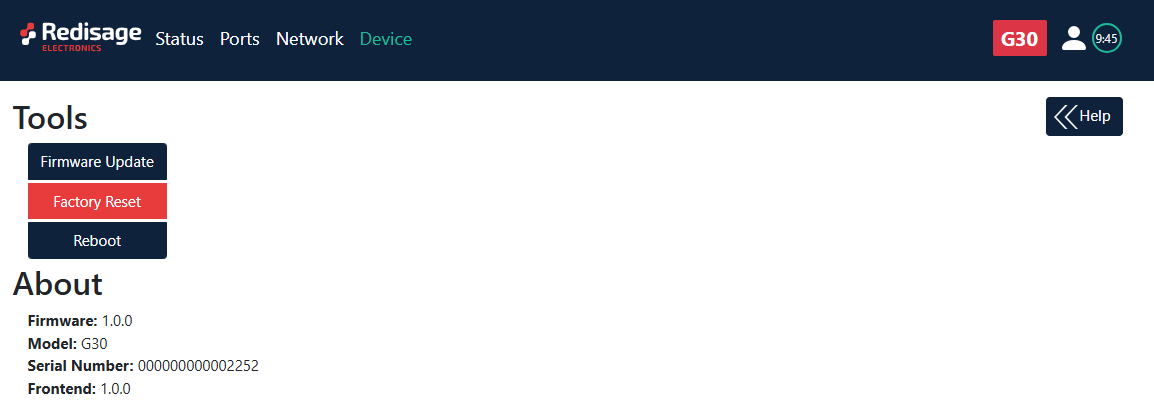
|
Item |
Description |
|
Firmware Update |
Update firmware. |
|
Factory Reset |
Restore default ports settings and default network configuration. |
|
Reboot |
Reboot the device. |
|
About |
Basic information about the device. |
Firmware update
The device firmware update must not be interrupted. Update the device only if experiencing issues, being instructed to do so by our support or requiring the latest features/bugfixes. Failure during the update may 'brick' the device and make it unusable.
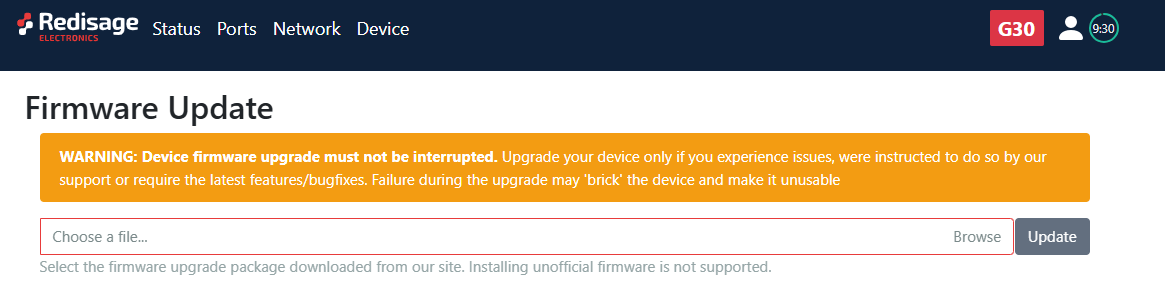
Use the modbus-mbus-mcu-esp32.fir file for a firmware update.
Factory reset
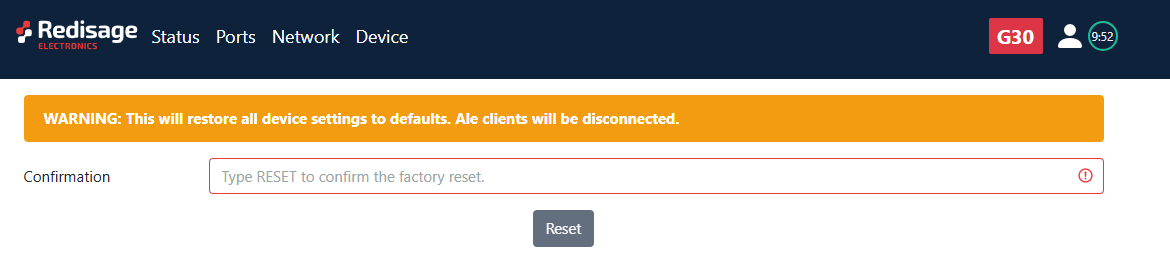
To restore default settings, press the red button. After that, user will be asked to type “RESET”. Then it will take a few seconds to reload the web page and restart the device. After reset, use default login details (login: admin, password: admin123; default IP: 192.168.100.100).
Configuration by the Telnet Console
Modbus TCP/RTU M-Bus Gateways (G20, G30)
The device can be also configured via the Telnet Console. Firstly, make sure that converter is connected to the power supply and to the LAN using a patch cord. Knowledge of the device’s IP address (default is 192.168.100.100) and Telnet port number (default is 23) is necessary to establish a connection.
Use command below in a terminal window to connect to the device:
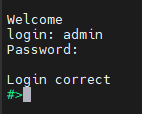
If the connection is successful there will be login prompt visible. Login using user's personal credentials or the default login details (login: admin, password: admin123). If login is successful, it will be possible to start typing configuration commands.
The configuration is available only if devices are connected to the same Local Area Network as the computer used for it.
List of all commands
|
Command |
Description |
|
help |
Print the help. |
|
conn |
Print active TCP connections. |
|
net_stat |
Print lwIP statistics. |
|
eth_mac |
Print or change MAC address. |
|
wifi_mac |
Print or change Wi-Fi MAC address |
|
ipconfig |
Print or change the network configuration. |
|
http_port |
Print or change default http port. |
|
telnet_port |
Print or change default telnet port. |
|
modbus |
Print or changes modbus settings. |
|
ping |
Check internet connection with the desired host. |
|
defaults |
Reset application variables to defaults |
|
restart |
Restart the system. |
|
user |
Print or change user configuration. |
|
sys_heap_usage |
Print current heap usage. |
|
mbus |
Print or changes M-Bus ports settings. |
|
wificonf |
Wi-Fi interface configuration |
|
exit |
Exit console. |
Modbus ports configuration commands
- modbus
- modbus help
Print command help. - modbus tcp_port PORT_NUMBER
Set modbus port to PORT_NUMBER. A PORT_NUMBER value must be in range:
1-65535
Example: modbus tcp_port 502 - modbus tcp_port PORT_NUMBER
Set modbus port to PORT_NUMBER. A PORT_NUMBER value must be in range:
1-65535
Example: modbus tcp_port 502 - modbus idle_time TIME
Set the timeout when waiting for the client's data [in miliseconds].
A TIME value must be in range:
0-4294967295
Example: modbus idle_time 50000 - modbus status
Print current modbus tcp_port as well as idle_time.
Example: modbus status
A current tcp port is 502.
A current idle time is 50000 [ms].
- modbus help
M-Bus ports configuration commands
- mbus {com_number} {subcommand} [arguments]
Print or change mbus_ports configuration
com_number - COM port number, as labeled in device's manual, to which mbus applies. This field is ignored for the subcommands 'period', 'availability' and 'help'
subcommand - subcommand to execute
arguments - subcommand parameters
- mbus help
Print current modbus tcp_port as well as idle_time - mbus mode [MBUS/MODBUS/DISABLED]
Sets port mode.
MBUS - Operates as an M-Bus master polling slave devices.
MODBUS - Acts as a Modbus slave, providing access to MBUS register data. - mbus add_slaves [SLAVE_ADDR ;/- SLAVE_ADDR, *][]
Sets all addresses of slaves connected to com_port.
A star in value means fill rest free slaves. It means all slaves that are not set to other ports will be set to this one.
Example: mbus 1 add_slaves 124
Example: mbus 1 add_slaves 12-124
Example: mbus 1 add_slaves 12;14;18
Example: mbus 1 add_slaves 12;14-17;150-200
Example: mbus 1 add_slaves 12;14-17;150-200, * - mbus availability
Lists the actually reachable slaves
Example: mbus available - mbus show_slaves
Show addresses of slaves connected to com_port
Example: mbus 1 show_slaves - mbus baud [RATE]
Sets the baudrate to RATE. For a list of acceptable baudrates please
refer to manual.
Example: mbus 1 baud 9600 - mbus bits [PS]
Sets parity to P and stop bits to S. Valid values are:
P: N, E or O
S: 1 or 2
Example: mbus 1 bits N1
Example: mbus 2 bits O2 - mbus data
Show data at desired address. 'com_number' is an address of MBUS slave
Example: mbus 4 data - mbus period TIME
Sets the period of readouts from the slaves to TIME [in seconds].
A TIME value must be in range:
1-4294967295
Example: mbus period 30 - mbus resp_to TIME
Sets the response timeout to TIME [in miliseconds].
A TIME value must be in range:
0-65535
Example: mbus 1 resp_to 30 - mbus termination [on/off]
Enable or disable termination on RS485 port
Example: mbus 1 termination on
- mbus help
If a subcommand which normally sets a value is not given an argument, it will print the current value.
Example:
#>mbus 2 baud
Set baudrate is 9600
Network settings
The following commands might be helpful to change network settings according to target LAN parameters,
- ipconfig
- ipconfig addr ADDRESS
Set IP address to ADDRESS.
Example:
ipconfig addr 192.168.0.10 - ipconfig mask NETMASK
Set subnet mask to NETMASK (in dot-decimal format).
Example:
ipconfig mask 255.255.255.0 - ipconfig mask BIT_COUNT
Set subnet mask to BIT_COUNT bits.
Example:
ipconfig mask 24 - ipconfig gateway GATEWAY_IP
Set network gateway to GATEWAY_IP.
Example:
ipconfig gateway 192.168.0.1 - ipconfig dhcp [enable/disable]
Enable or disable DHCP client.
Example:
ipconfig dhcp enable - ipconfig dns<num> ADDRESS
Set DNS to ADDRESS, disable getting DNS from DHCP if enabled.
Example:
ipconfig dns1 192.168.100.1 - ipconfig default_netif [NETIF_NAME]
Sets interface as a default. If interface name is not given,
displays current default interface.
Example: default_netif e02
- ipconfig addr ADDRESS
- http_port
- http_port help
Print the help message. - http_port PORT_NUMBER
Set http port to PORT_NUMBER. A PORT_NUMBER value must be in range: 1-65535.
Example:
http_port 80 - http_port status
Print current http port.
Example:
http_port status
A current http port is 80
- http_port help
- telnet_port
- telnet_port help
Print the help message. - telnet_port PORT_NUMBER
Set Telnet port to PORT_NUMBER. A PORT_NUMBER value must be in range: 1-65535.
Example:
telnet_port 23 - telnet_port status
Print current Telnet port.
Example:
telnet_port status
A current telnet port is 23
- telnet_port help
Changing username or password
To change username or password, use user command. Available commands:
- user help
Print the help message. - user mod_name USER_NAME NEW_NAME
Change the user name to NEW_NAME. It fails if the name is used by another user.
Example:
user mod_name admin NEW_NAME - user passwd USER_NAME
Change USER_NAME's password.
Example:
user passwd admin
****** <- here is entered password, but '*' appears instead
Note: Everyone can change the password for themselves.
Additional notes
After some time of inactivity, session will be disconnected automatically.
In order to avoid issues like connecting to host, type “help” to get more information.
To get more details about every particular command, append “help” after each commands (example: "ipconfig help").
Factory reset is not available from the Telnet Console level.
Configuration by the Serial Console
Modbus TCP/RTU Gateways (G20, G30)
Another way to configure the device is via a serial console. In case of the G11 - G13 Modbus gateways an additional USB/UART converter is needed.
Procedure to enter serial console mode
- Turn off the power of the device.
- Connect Ethernet converter to the dedicated USB/UART converter via the microUSB port (for example our C38 converter).
- Connect the USB/UART converter to the PC.
- Open the serial console (default baud rate is 115200 bps).
- Short the FG and GND ports.
- Turn on the power.
- Wait until the ST indicator (orange LED) lights up (it should light up after red light - service mode).
- Open the the FG and GND ports.
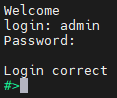
- Login using user’s personal credentials or default login details.
- If the process is successful, configuration command can be typed into the terminal.
List of all commands
|
Command |
Description |
|
help |
Print the help. |
|
conn |
Print active TCP connections. |
|
net_stat |
Print lwIP statistics. |
|
eth_mac |
Print or change MAC address. |
|
wifi_mac |
Print or change Wi-Fi MAC address |
|
ipconfig |
Print or change the network configuration. |
|
http_port |
Print or change default http port. |
|
telnet_port |
Print or change default telnet port. |
|
modbus |
Print or changes modbus settings. |
|
ping |
Check internet connection with the desired host. |
|
defaults |
Reset application variables to defaults |
|
restart |
Restart the system. |
|
user |
Print or change user configuration. |
|
sys_heap_usage |
Print current heap usage. |
|
mbus |
Print or changes M-Bus ports settings. |
|
wificonf |
Wi-Fi interface configuration |
|
exit |
Exit console. |
Modbus ports configuration commands
- modbus
- modbus help
Print command help. - modbus tcp_port PORT_NUMBER
Set modbus port to PORT_NUMBER. A PORT_NUMBER value must be in range:
1-65535
Example: modbus tcp_port 502 - modbus tcp_port PORT_NUMBER
Set modbus port to PORT_NUMBER. A PORT_NUMBER value must be in range:
1-65535
Example: modbus tcp_port 502 - modbus idle_time TIME
Set the timeout when waiting for the client's data [in miliseconds].
A TIME value must be in range:
0-4294967295
Example: modbus idle_time 50000 - modbus status
Print current modbus tcp_port as well as idle_time.
Example: modbus status
A current tcp port is 502.
A current idle time is 50000 [ms].
- modbus help
M-Bus ports configuration commands
- mbus {com_number} {subcommand} [arguments]
Print or change mbus_ports configuration
com_number - COM port number, as labeled in device's manual, to which mbus applies. This field is ignored for the subcommands 'period', 'availability' and 'help'
subcommand - subcommand to execute
arguments - subcommand parameters
- mbus help
Print current modbus tcp_port as well as idle_time - mbus mode [MBUS/MODBUS/DISABLED]
Sets port mode.
MBUS - Operates as an M-Bus master polling slave devices.
MODBUS - Acts as a Modbus slave, providing access to MBUS register data. - mbus add_slaves [SLAVE_ADDR ;/- SLAVE_ADDR, *][]
Sets all addresses of slaves connected to com_port.
A star in value means fill rest free slaves. It means all slaves that are not set to other ports will be set to this one.
Example: mbus 1 add_slaves 124
Example: mbus 1 add_slaves 12-124
Example: mbus 1 add_slaves 12;14;18
Example: mbus 1 add_slaves 12;14-17;150-200
Example: mbus 1 add_slaves 12;14-17;150-200, * - mbus availability
Lists the actually reachable slaves
Example: mbus available - mbus show_slaves
Show addresses of slaves connected to com_port
Example: mbus 1 show_slaves - mbus baud [RATE]
Sets the baudrate to RATE. For a list of acceptable baudrates please
refer to manual.
Example: mbus 1 baud 9600 - mbus bits [PS]
Sets parity to P and stop bits to S. Valid values are:
P: N, E or O
S: 1 or 2
Example: mbus 1 bits N1
Example: mbus 2 bits O2 - mbus data
Show data at desired address. 'com_number' is an address of MBUS slave
Example: mbus 4 data - mbus period TIME
Sets the period of readouts from the slaves to TIME [in seconds].
A TIME value must be in range:
1-4294967295
Example: mbus period 30 - mbus resp_to TIME
Sets the response timeout to TIME [in miliseconds].
A TIME value must be in range:
0-65535
Example: mbus 1 resp_to 30 - mbus termination [on/off]
Enable or disable termination on RS485 port
Example: mbus 1 termination on
- mbus help
If a subcommand which normally sets a value is not given an argument, it will print the current value.
Example:
#>mbus 2 baud
Set baudrate is 9600
Network settings
The following commands might be helpful to change network settings according to target LAN parameters,
- ipconfig
- ipconfig addr ADDRESS
Set IP address to ADDRESS.
Example:
ipconfig addr 192.168.0.10 - ipconfig mask NETMASK
Set subnet mask to NETMASK (in dot-decimal format).
Example:
ipconfig mask 255.255.255.0 - ipconfig mask BIT_COUNT
Set subnet mask to BIT_COUNT bits.
Example:
ipconfig mask 24 - ipconfig gateway GATEWAY_IP
Set network gateway to GATEWAY_IP.
Example:
ipconfig gateway 192.168.0.1 - ipconfig dhcp [enable/disable]
Enable or disable DHCP client.
Example:
ipconfig dhcp enable - ipconfig dns<num> ADDRESS
Set DNS to ADDRESS, disable getting DNS from DHCP if enabled.
Example:
ipconfig dns1 192.168.100.1 - ipconfig default_netif [NETIF_NAME]
Sets interface as a default. If interface name is not given,
displays current default interface.
Example: default_netif e02
- ipconfig addr ADDRESS
- http_port
- http_port help
Print the help message. - http_port PORT_NUMBER
Set http port to PORT_NUMBER. A PORT_NUMBER value must be in range: 1-65535.
Example:
http_port 80 - http_port status
Print current http port.
Example:
http_port status
A current http port is 80
- http_port help
- telnet_port
- telnet_port help
Print the help message. - telnet_port PORT_NUMBER
Set Telnet port to PORT_NUMBER. A PORT_NUMBER value must be in range: 1-65535.
Example:
telnet_port 23 - telnet_port status
Print current Telnet port.
Example:
telnet_port status
A current telnet port is 23
- telnet_port help
Changing username or password
To change username or password, use user command. Available commands:
- user help
Print the help message. - user mod_name USER_NAME NEW_NAME
Change the user name to NEW_NAME. It fails if the name is used by another user.
Example:
user mod_name admin NEW_NAME - user passwd USER_NAME
Change USER_NAME's password.
Example:
user passwd admin
****** <- here is entered password, but '*' appears instead
Note: Everyone can change the password for themselves.
Additional notes
After some time of inactivity, session will be disconnected automatically.
In order to avoid issues like connecting to host, type “help” to get more information.
To get more details about every particular command, append “help” after each commands (example: "ipconfig help").
Service mode
Entering the service mode is almost the same as entering the serial console. One different is to open FG and GND ports earlier (when the red LED is still blinking).
Available commands in the service mode:
|
Command |
Description |
|
help |
Print the help. |
|
credits |
Print current credits value for this device. |
|
dev_ident |
Print the device identificator value. |
|
restart |
Restart the system. |
|
serial_num |
Print the serial number of this device. |
|
version |
Display the bootloader version. |
|
xmodem |
Download image to the internal Flash using xmodem. |
|
defaults |
Reset application variables to defaults. |
|
ipconfig |
Print or change the network configuration. |
|
flash_read |
Read bytes from flash memory. |
|
md |
Read bytes from memory address. |